Railway env vars may be exposed, what do you change first?
Some Railway environment variables were decrypted after access began Oct 20. A runbook covers rotation order, check commands and fixes for blocked deploys.
Treat every environment variable of an app you host on Railway as exposed. The minimum response is to revoke each value where it was issued, get a new one, and then redeploy every service that uses it. If you only overwrite a variable with a new value in the Railway dashboard, the old key that was copied out stays alive. All times in this article are UTC, and it spends more space on “what to change, in what order, and how to verify it” than on the sequence of events. As of Oct 27, the most recent incident document Railway has published is the interim report of Oct 22, and it says whether users’ source code was accessed will be covered in the final forensic report.
- Affected
- Every user who stored environment variables, API keys or private registry credentials on Railway. The verified range of possible exposure is at most 1.85% (about 100,000 workspaces), but the advisory covers every value stored before Oct 21
- Attack method
- Started with a privilege-escalation attempt on build infrastructure, went through CI environment credentials, and decrypted some entries in the encrypted environment variable store
- Attack window
- From 13:58 on Oct 20 to 03:32 on Oct 22 (UTC)
- What Railway did
- Revoked sessions and Railway tokens, reissued storage bucket keys, reset GitHub connections, and asked vendors to revoke keys
- Revoke AI vendor, cloud and payment keys in the issuer's console and reissue them
- Put the new values into Railway and redeploy every service that uses them
- Regenerate databases and turn off public access
- Check usage records for calls made with the old keys after Oct 20
Values already changed and values still alive
The first thing to separate is “values Railway already handled” from “values I have to handle.” If you mix them up, a value you skipped on the assumption that it was already reset stays valid. In the grid below, the darker the color, the more work remains for the user.
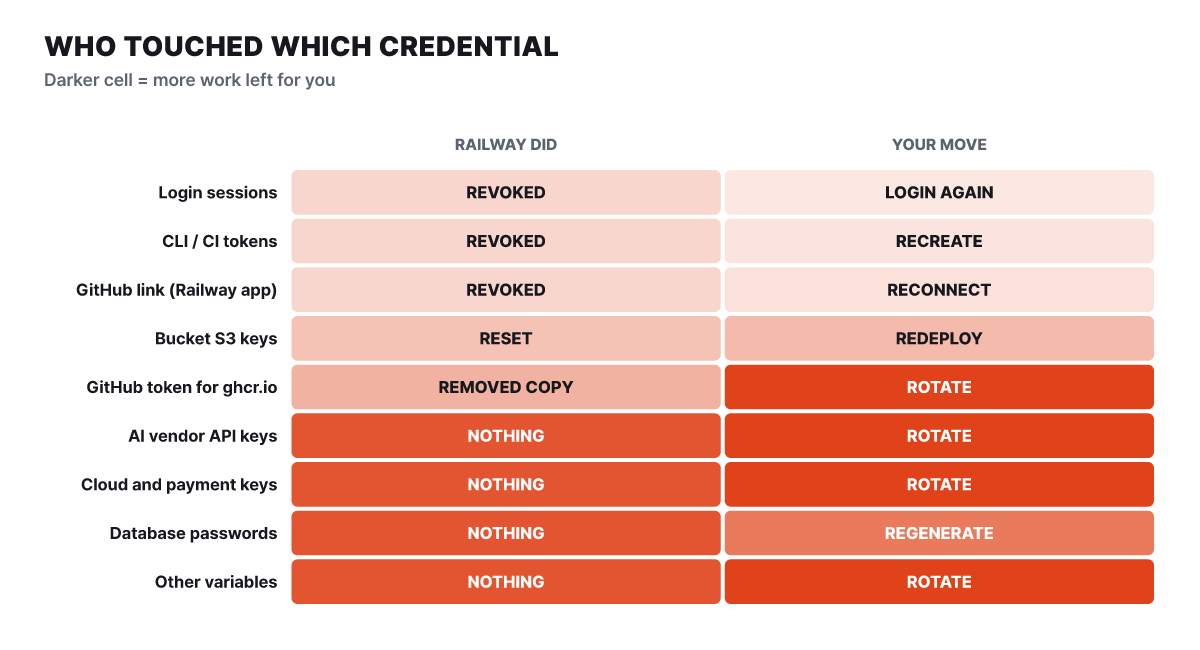 Figure 1. Railway handled the top four rows; the user handles every bottom row at the issuer
What Railway did falls into three groups. It revoked all login sessions and Railway access tokens (for the CLI and CI), reset GitHub app installations and connection tokens, and reissued the storage bucket S3 credentials (access key ID and secret key) in every environment. GitHub access tokens you had stored as a service’s registry credentials were deleted from Railway but are still valid on GitHub, so you must delete them yourself. The bottom of the grid, that is AI vendor keys, cloud keys, payment keys, database passwords and all other variables, is something Railway will not change for you. The notice told users to rotate “all environment variables” and made no exceptions, so treat sealed variables, whose values are hidden in the dashboard, as being in scope too.
How the keys got out
To see why so much has to change, look at the path the interim report draws. The attack climbed up through Railway’s internal systems, not through user accounts, so a user’s own login history cannot sort out the damage.
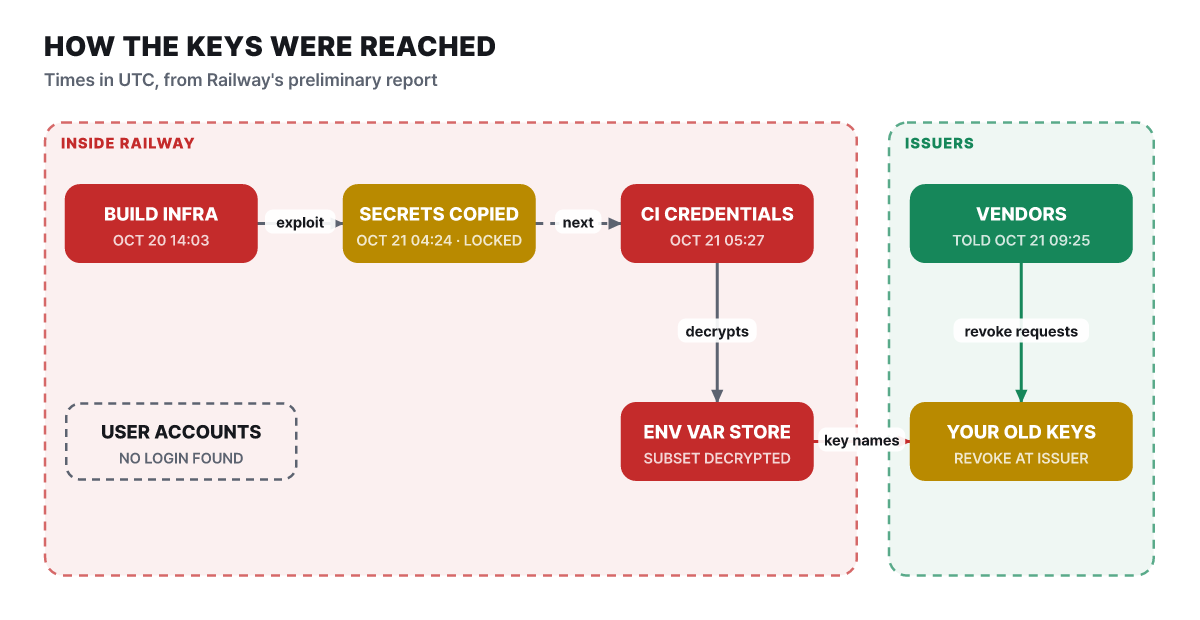 Figure 2. Red boxes are inside Railway, green boxes are issuers. No user account logins were confirmed
The first step was a privilege-escalation attempt on build infrastructure, and the estimated start of the attack is 13:58 on Oct 20, when monitoring caught a rise in latency. Secrets in encrypted form were taken between 04:24 and 05:23 on Oct 21, and at that point they could not yet be opened. From 05:27, the attacker used CI environment credentials to decrypt an artifact that contained additional API access, and between 07:25 and 09:18 unauthorized reads of encrypted environment variables were confirmed, with some of them decrypted. Because every key is protected by envelope encryption, the read logs alone could not tell which keys were opened. So Railway handed the issuers “all keys stored on the platform” rather than “individual keys,” and that is why you cannot tell whether your own key was stolen.
Railway sees this attack as part of a pattern of going after platform vendors one after another to collect the keys of AI inference vendors. API key names the attacker was searching for were found in the attacker payload logs, and initial investigation points to distillation as the goal. Distillation means firing large numbers of questions at an expensive model and training your own model on the answers, so someone else’s API key is direct fuel. That is why AI vendor keys come first in the order.
The timeline up to the notice, and the 1.85%
Two gaps matter to users. The gap between the time Railway asked vendors to revoke keys (09:25 on Oct 21) and the time the user notice went out (20:19) is about 11 hours (editors’ calculation), and the whole attack window is about 37 and a half hours (editors’ calculation).
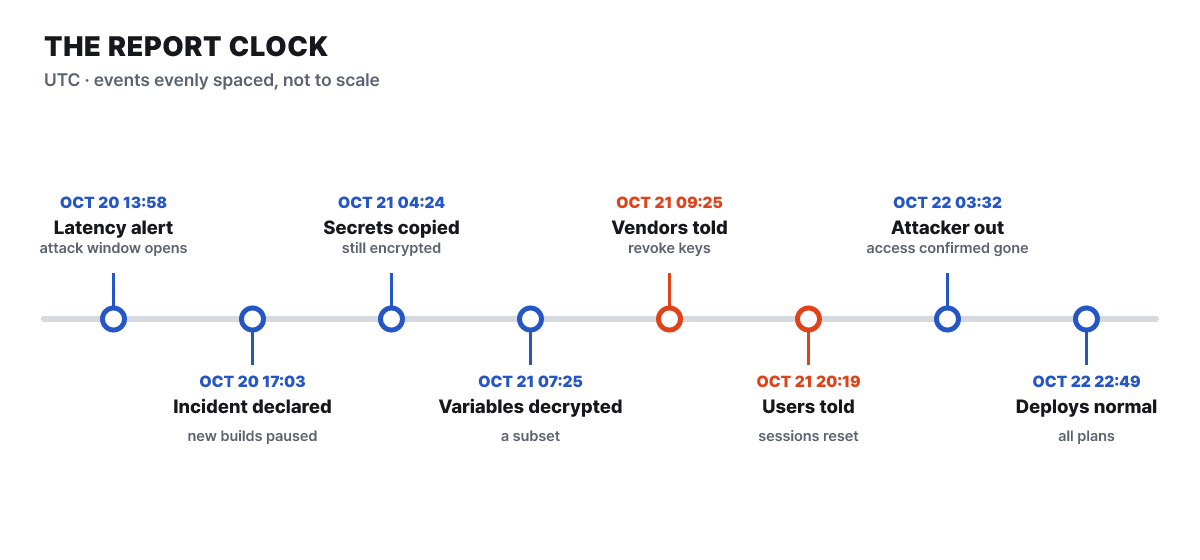 Figure 3. The two red dots are the vendor notice and the user notice. Gaps are not to scale
As the reason for telling users late, Railway points out that recommending rotation while the intruder was still inside the system could have led to the newly entered keys being exposed again right away. At 03:32 on Oct 22 it confirmed the attacker could no longer get in, then reinitialized internal systems with minimal dependencies and fresh credentials, and deployments on every plan returned to normal between 17:00 and 22:49 the same day. At 22:03 on Oct 23 the support site (station.railway.com) was restored, and the same update said new sign-ups and some non-core features remained suspended.
The 1.85% figure has to be read in two ways. One is that it is an upper bound on the range verified as possibly exposed, not “confirmed damage.” The other is that the range handed to issuers is much wider. Receiving a “your key was revoked” notice from GitHub, GitLab, Anthropic, OpenAI, OpenRouter, Stripe and others does not mean your key was stolen, and not receiving one does not mean you are safe. Railway contacts confirmed-impact and high-risk customers separately, and the high-risk groups are workspaces with a very large number of variables and environments with many AI vendor keys.
People also often ask whether services went down. Services that were running stayed online; what stopped was new builds and deployments. Railway says it redeployed and verified the affected systems and moved the builder to a fourth-generation single-tenant environment. Regardless of that, you still need to rotate your values.
Order of rotation
If you cannot change everything at once, start with “the values that open up money or doors the moment they leak.” The fact that the attacker was after AI vendor keys is the basis for this order.
- AI vendor API keys. If OpenAI, Anthropic, xAI's Grok or OpenRouter keys leak, calls are made immediately at your expense. Handle them first.
- Cloud and payment keys. AWS access keys, GCP service account keys and Stripe secret keys open the doors of other systems.
- Databases. If public access (TCP proxy) is on, the database can be used from anywhere on the internet, so turn access off and Regenerate the password.
- GitHub and container registry tokens. What Railway deleted was its own copy, so revoke them yourself in GitHub settings.
- Everything else. Session signing keys, webhook secrets, internal tokens. Changing a session signing key logs out all users, and a webhook secret has to be changed on the sending side too so the two do not drift apart.
Seven steps to revoke one key
The same loop applies to every value. There are two dangerous stretches: the stretch after you create a new key and before you delete the old one, when the old key still works for anyone, and the stretch after you delete the old key and before the redeploy finishes, when your service fails authentication.
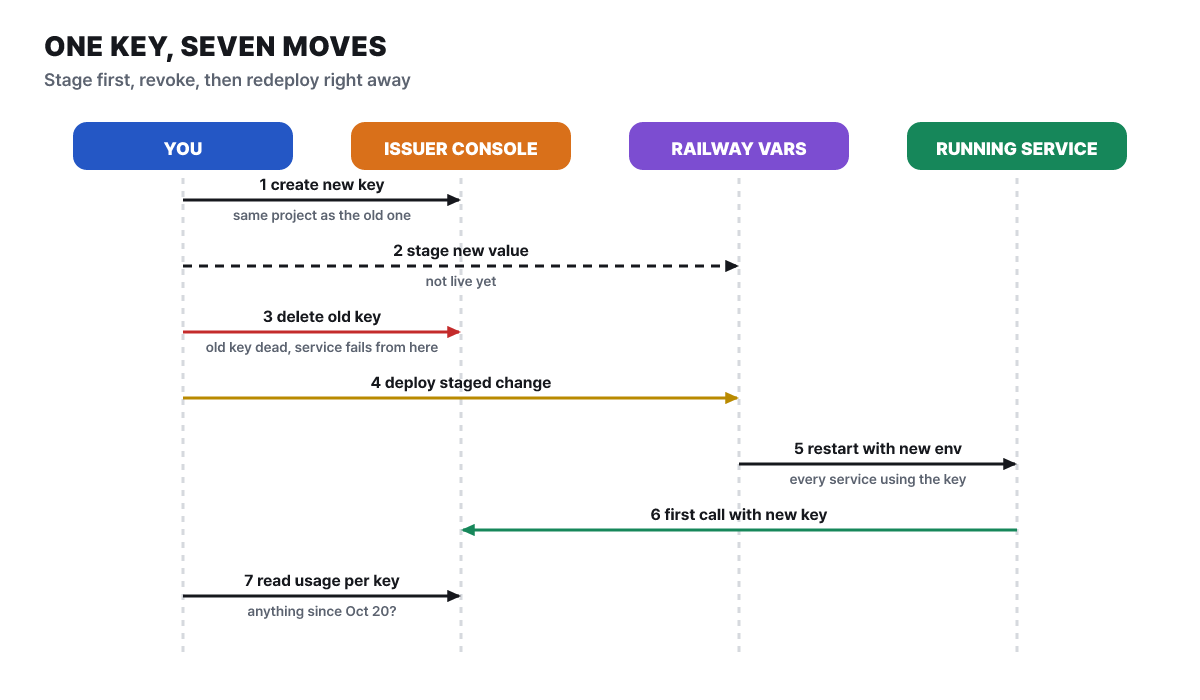 Figure 4. Staging the variable early in step 2 shortens the authentication-failure window between steps 3 and 5
Variable changes in Railway pile up as “staged” and take effect only when you click deploy. So in step 2 you only stage the new value, and you attach the deploy of step 4 right after the revocation in step 3. A container keeps using the variables it read at startup, so without a redeploy the old value keeps running, and if you delete the old key in that state the service starts failing authentication. You have to redeploy not just the service you deployed a moment ago but every service that points to that key. If it is a shared variable used by several services, fix it once in the project settings.
Spelled out for an OpenAI key, it goes like this.
- On the API keys screen, pick the project first, create a new secret key in that same project, and copy it on the spot. Once you close the screen you cannot view it again.
- In the Variables tab of the Railway service, change the value to the new key, but do not click deploy yet.
- Go back to OpenAI and delete the exposed key with the trash icon next to it. Deletion takes effect immediately. Project keys and older user keys are on different screens, so check both.
- Right away, deploy the staged changes in Railway.
- When the new deployment is active, check in the logs that calls succeed, and look at usage per key.
The same frame is used elsewhere, but each issuer has different safeguards. Anthropic deletes keys under API keys in the Console, and admin keys (starting with sk-ant-admin01-) are separate and are deleted separately. At OpenRouter, deleting a key also erases its usage history, so before deleting, check cumulative, daily, weekly and monthly usage through the key lookup (/api/v1/key), deactivate first, and then delete. Set a spending limit and an expiry date on the new key. At xAI, deactivating a key can be undone, and the usage history stays with the key.
Cloud and payment keys split depending on whether you can accept downtime. If the leak is certain, it is right to accept a brief outage and cut off the old credentials immediately. If it is precautionary and an outage would be a problem, these methods are available.
- AWS: A user can have two access keys, so create the new key first and deactivate the old one rather than deleting it. If a forgotten service breaks, you can bring it back briefly.
- GCP: Service account keys do not expire by default and cannot be deactivated in the console, so use
gcloud iam service-accounts keys disable KEY_ID --iam-account=EMAIL. Short-lived tokens that were already issued stay valid for up to an hour, so to cut off access immediately, disable the service account itself, wait more than 60 minutes, and then restore it. - Stripe: When you roll a key, you can choose when the old key expires. For a confirmed leak choose “now”; for a precaution, give it the grace time the redeploy needs.
Records to open at each issuer
Revoking is not the end. You need to check whether any calls you did not make happened after 13:58 on Oct 20 (UTC), when the attack window began. Each issuer keeps records in a different way and for a different period, so once you know where to open, each one takes a few minutes.
| Issuer | Where to open | Suspicious signs | Good to know |
|---|---|---|---|
| Anthropic | Console Usage grouped by key, Cost, Logs | A key that only used one model shows another model | Some keys were disabled because GitHub secret scanning flagged the exposed key |
| OpenAI | Usage by project and key, credits under Billing | Token volume, request count or model mix differs from usual | Key deletion takes effect immediately |
| OpenRouter | Cumulative, daily, weekly and monthly usage via the key lookup API | Usage at times you normally do not use it | Deleting erases usage history, so deactivate first |
| xAI (Grok) | Usage history kept on the key | Calls you did not send | Deactivation can be undone |
| Stripe | Request logs of the old revoked key | Unfamiliar IPs or endpoints, changes to payments, refunds, payout accounts or webhooks | Webhook signing secrets are separate from API keys and must be rotated separately |
| AWS | CloudTrail event history (90 days, per region), credential report, Cost Explorer | RunInstances, CreateUser, CreateAccessKey, AttachUserPolicy, CreateRole, PutBucketPolicy |
Resources may have been created in regions you do not use, so repeat for every region |
| GCP | Logs Explorer (filter by principal email), Activity Analyzer, billing reports | New service accounts, keys or IAM bindings; Compute, GPU and Vertex AI usage | These are the three common targets |
| GitHub | Personal security log (90 days), organization audit log (180 days) | Unknown OAuth apps, SSH and GPG keys, personal access tokens, deploy keys, webhooks, collaborators | Download the logs before deleting. Webhooks and secrets remain even if you change the password |
| Railway | Workspace audit log (retention depends on plan) | Variable reads, registry credential changes or deployments by someone other than your team or Railway Staff | The actor for bucket key reissue is recorded as “Railway Staff” |
If your service uses a fixed egress IP, calls from any other IP are a clue. Without a fixed egress IP, the service goes out through Railway’s shared IPs, so an unfamiliar IP is only a clue, not evidence. If you set a monthly usage limit and alerts at each issuer while you attach the new keys, then even if the same thing happens again, the damage stops within a limit.
Read-only lookup commands
For the two clouds, instead of scanning the console by eye you can narrow things down with queries. The commands below change nothing, and you only swap in your own key ID and service account email. AWS keeps event history per region, so run it in a loop.
# AWS: look up events made with the exposed access key, region by region (read-only)
for r in $(aws ec2 describe-regions --query 'Regions[].RegionName' --output text); do
  echo "== $r"
  aws cloudtrail lookup-events --region "$r" \
    --lookup-attributes AttributeKey=AccessKeyId,AttributeValue=AKIAEXAMPLEKEYID \
    --query 'Events[].[EventTime,EventName,Username]' --output text
done

# GCP: check the date a service account key last authenticated (read-only)
gcloud policy-intelligence query-activity \
  --activity-type=serviceAccountKeyLastAuthentication --project=my-project
In GCP’s Logs Explorer, paste the query below as it is and change only the principal email. Everything this service account has done appears in time order.
logName:"cloudaudit.googleapis.com"
protoPayload.authenticationInfo.principalEmail="railway-uploads@my-project.iam.gserviceaccount.com"
The Railway CLI commands used in this article are gathered in one place as well. Output differs by account, so it is not shown, and the last two lines in the figure are error strings you will meet when you run the commands.
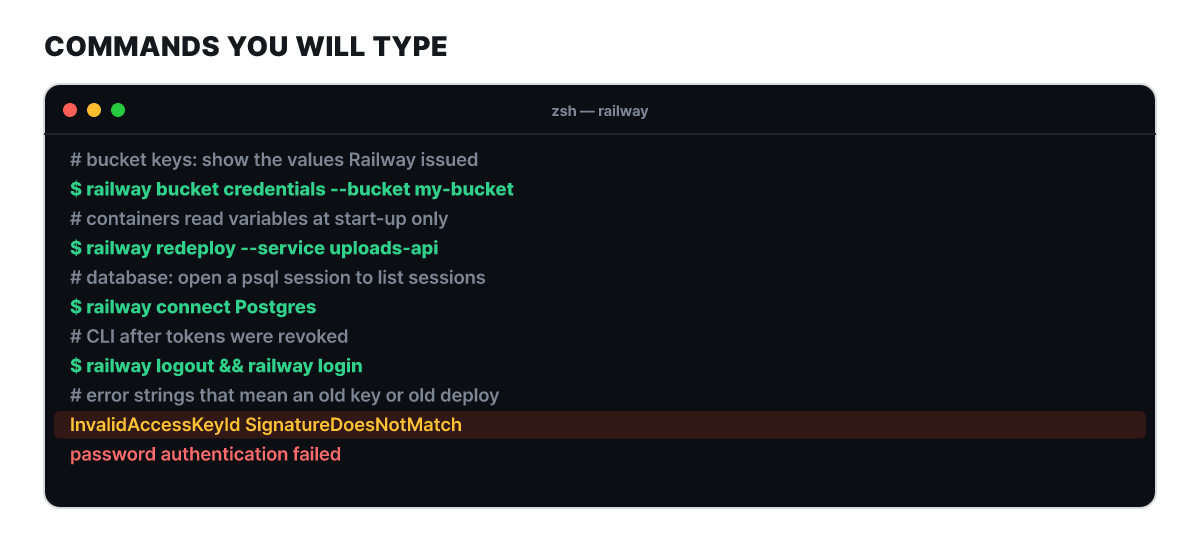 Figure 5. The yellow line appears when a service is still running on the old key, and the red line appears when the database password is out of sync
Databases: one Regenerate
For PostgreSQL, MySQL, Redis and MongoDB created from Railway templates, Regenerate is the safest option. In the database tab’s Config, click the button next to the Connection password, and the password inside the database and the service variables change together; the database restarts, and every open session is cut off. Connections the attacker was holding are cut here too. The order is as follows.
- Before rotating, find the services that use this database in the Variables tab, and write down whether public access is on under Networking in Settings and whether external tools use
DATABASE_PUBLIC_URL. - Click Regenerate. Do not edit
POSTGRES_PASSWORDby hand or runALTER USERyourself, because that leaves the variable and the database out of step with each other. - Redeploy every dependent service. Regenerate redeploys only the database. For services where you pasted a connection string, switch to a reference variable such as
${{ Postgres.DATABASE_URL }}and then deploy. - Enter the new
DATABASE_PUBLIC_URLinto external tools by hand. If you do not need public access, turn it off while you are at it.
If the connections were made through reference variables, from the next rotation on Regenerate and a redeploy are all it takes. The check after rotation has two branches. If password authentication failed appears in a service’s deploy log, that service is holding the old password, so redeploy it or swap the pasted value for a reference. If the logs are clean, connect with railway connect Postgres and look at the sessions currently attached with the query below. The restart cut every earlier session, so an unfamiliar session got in with the new password, which means you have to find where the password is leaking, and you end that session with SELECT pg_terminate_backend(12345); (replace the number with the pid you saw in the query).
SELECT pid, usename, client_addr, application_name, backend_start, state
FROM pg_stat_activity
WHERE datname = current_database();

SELECT rolname FROM pg_roles;   -- any roles I did not create?
By default, PostgreSQL does not log successful connections and client addresses, so this query cannot tell you who connected in the past, and you look for traces in unfamiliar roles, extensions and row changes. If you find data was changed, preserve the evidence and then roll back with a backup or point-in-time recovery. If you judge the password did not leak and want to avoid downtime, Railway has a zero-downtime rotation guide (a dual-role approach), but Railway itself recommends that when a leak is suspected, cutting off the old credentials matters more than a short outage.
Bucket keys and ghcr tokens
Railway has already reissued the keys for storage buckets, so what remains is “making things use the new values.”
- For each bucket and environment, see the new values on the Credentials screen or with
railway bucket credentials --bucket NAME. - In the service’s Variables, find references such as
${{ BUCKET.SECRET_ACCESS_KEY }}or library variables such asAWS_SECRET_ACCESS_KEY, and if an old key is pasted in plain text, switch it to a reference. - Redeploy that service with
railway redeploy --service NAME, and change the old key outside Railway too (local development, CI, S3 file browsers). - Confirm that listing or writing succeeds. If
InvalidAccessKeyIdorSignatureDoesNotMatchappears, the service is running on an old deployment or has the old value pasted in. - In the bucket’s Files screen, check for objects you did not upload or files that have disappeared. Buckets have no automatic backups, so note anything you find right away.
If you need to change them again later, railway bucket credentials --reset invalidates the current key and creates a new one. If you put a GitHub token in a service to pull private images from ghcr.io, work remains on the GitHub side.
- Delete the old token under Personal access tokens on GitHub (it was deleted from Railway but is still valid on GitHub)
- Create a new token with the scope
read:packages - Put the new token in GitHub Access Token under the service's Settings > Source > Registry Credentials and save (Railway fills in the username)
- Redeploy the service, and repeat for every service that pulls from ghcr.io (private registry credentials are a Pro plan feature)
Fixes by symptom when a deploy will not start
Separate from the attack, many people met this incident first as a “deploys do not work” problem. Commits pushed during the suspension were not queued, so services kept running their last successful deployment, and cron jobs scheduled in the meantime did not run and resume from the next scheduled time.
| Symptom | Cause | Fix |
|---|---|---|
| Pushing does not start a new deploy, and the build error says “unable to pull repository” | GitHub connection revoked | Reconnect GitHub in account settings, Disconnect then Connect Repo under the service’s Settings > Source, check the Railway app’s permissions on GitHub, and run “Deploy Latest Commit” from the Command Palette (CMD/CTRL + K) |
| Connected, but only auto deploys do not run | Auto deploys need at least one member whose GitHub account has contributor permission on the repository | That member reconnects GitHub and sets autodeploy to Enable in Settings |
railway up in CI fails with an authentication error |
Both the project token (RAILWAY_TOKEN) and the account or workspace token (RAILWAY_API_TOKEN) were revoked |
Create a new token with the same scope, replace the old value in the CI secrets, and rerun the pipeline |
| Local CLI will not log in | Stored session revoked | railway logout, then railway login |
Service is up but storage calls return InvalidAccessKeyId |
Bucket key changed while an old deployment is running | Redeploy that service |
| You must log in by email for the account to carry over | GitHub app installations were all reset and the GitHub email differs from the Railway email | Use “Log in using email” |
| GitHub login loops endlessly | OAuth app approval state is tangled | Revoke Railway under OAuth apps on GitHub and try again |
| Logged in but there are no projects | You logged in with a different identity (Gmail, GitHub, email) than the one you first signed up with, and a new empty account was created | Do not create a new project; log out and log in with your original identity |
Proof to send support when you cannot get into your account
If even the last row’s fix, that is your original identity, does not get you in, support will recover the account for you. The support site (station.railway.com) was restored at 22:03 on Oct 23 so you can file requests again, and the email address is support@railway.com. The means of proving ownership here is a GitHub account. From that account, create an empty public repository named Railway-2FA-Reset, write its address in the request, and delete the repository once the recovery is confirmed. Never write passwords, login codes, recovery codes or API tokens in the request.