nanobot, a small-core AI agent for chat and schedules
nanobot, an MIT open-source agent, plugs chat apps, tools, memory and schedules into one gateway. We take it apart and cover the two locks that start off.
You give a task to your agent on Telegram in the morning. In the evening you follow up from a browser window. Does the same agent pick it up? nanobot’s answer is “half of it.” Conversation history piles up separately per entrance by default, but the memory files about you are read and written by every entrance together. That one fact tells you a lot about what kind of tool nanobot is. It is a personal AI agent framework written in Python by the HKUDS organization on GitHub and released under the MIT license, and it champions “a small core with only what you need on top.” The model comes from the cloud provider or local model server you choose, and nanobot is the body that holds conversation, memory, tools and schedules.
This post takes that core apart from the outside in: what it is and what attaches to it. We go through the entrances (chat apps and screens), tools, workspaces, memory and scheduled jobs in turn, and finish with the locks that are open by default and that you have to fill in yourself. The figures are values I re-checked on 2026-10-27 UTC by reopening GitHub, PyPI and the docs on the repository’s main branch.
One resident process, everything else plugs in
A coding agent works only while you sit in front of a terminal, and a web chatbot knows nothing about your folders or calendar. nanobot aims at the space between them, and its core is a resident process called the gateway. According to the architecture docs, nanobot gateway starts the chat app channels you turned on, the WebSocket channel (the WebUI rides on it), a per-workspace cron service, system jobs such as Dream and heartbeat, and a health check address. The README sums this up as five promises: persistent work, reach through chat apps, freedom of model choice, a core small enough to read, and self-hosting on your own stack.
The figure below divides the area around the core into three zones: entrances, tools and on-disk state. The red labels mark where the locks covered later sit.
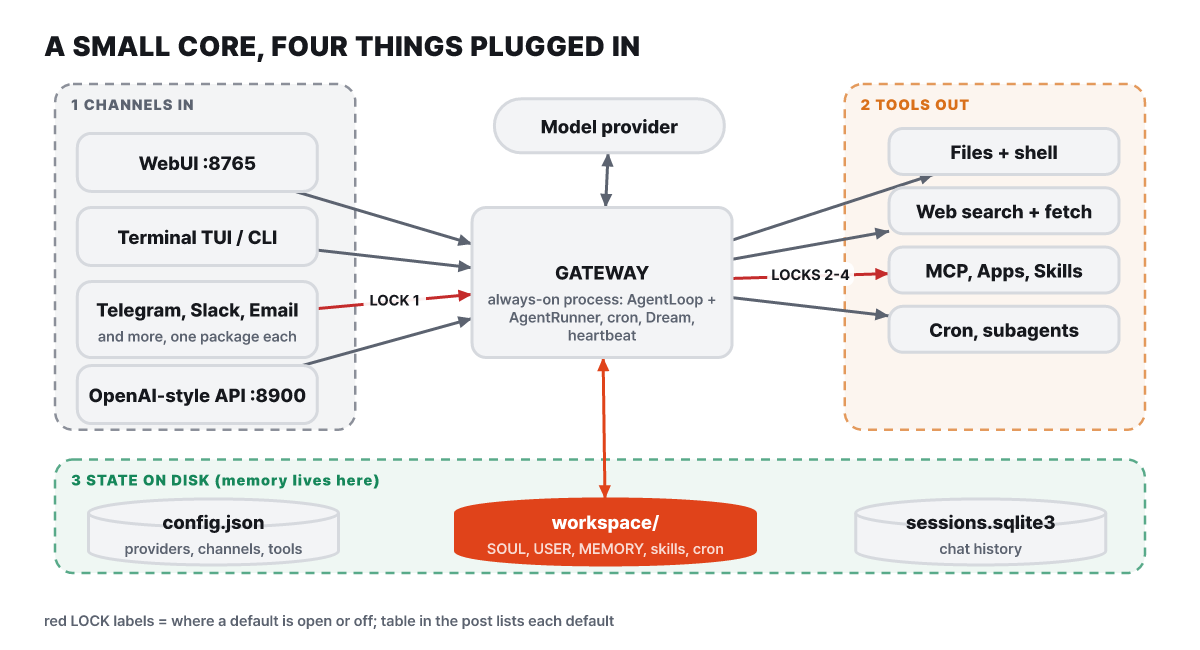 Figure 1. There are many entrances but one place where work happens. Memory builds up in the workspace folder at the bottom
Whichever entrance you start from, a single turn takes the same path. A channel puts the message on an internal queue (MessageBus). The agent loop (AgentLoop) decides the conversation and the work folder and assembles the context to send to the model. The runner (AgentRunner) repeats model calls and tool runs until an answer comes out, then the result is saved and sent back to the channel it came from. Knowing how the two parts split their duties helps when you hunt for a problem. Channel routing, session keys, work folder selection and reply delivery belong to the loop. Model calls, tool calls, streaming and the iteration limit belong to the runner.
The runner has a few safeguards. If tools run so long that the iteration limit is hit, the next ordinary request gets a short note saying “follow the current request, and continue unfinished work only when asked.” If reading many files blows the context budget, it first summarizes the history that has already gone to the model, and only the file results that still don’t fit are turned into an error asking you to “read a smaller range.” A loop that keeps pouring out the same words is cut off by tools.maxSessionMessagesPerMinute (default 6), which limits how many messages one session can send in 60 seconds.
There are also two ways to call it from outside the core. A Python program can embed the agent through the SDK, and any other language can start an OpenAI-compatible server with nanobot serve, shaped like /v1/chat/completions. This API accepts exactly one user message per request, the server keeps the conversation history under session_id, and the settings, not the request, decide which model is used. The SDK cannot be imported from a separate environment installed with uv tool, so install it into the same virtual environment. No API key is needed on a local address, but if you open it on 0.0.0.0 the server will not start without api.apiKey.
| Contact point | Default address | Note |
|---|---|---|
| WebUI·WebSocket | 127.0.0.1:8765 | Reachable only from inside your own computer |
| Health check | 127.0.0.1:18790/health | For status checks, not the WebUI |
| OpenAI-compatible API | 127.0.0.1:8900 | nanobot serve |
Many entrances, separate conversation histories
A channel is an adapter that turns a message from an external platform into an internal message and sends the answer back to that platform. Each channel is an independent package under nanobot/channels/, and the manager scans this folder to find them. To add a new channel, you add one package. The docs cover more than ten chat apps, including Telegram, Discord, Slack, email, Mattermost, Linear, Signal, WeChat and WhatsApp. If you set one up on the WebUI’s Channels screen by entering credentials or scanning a QR code, any optional packages it needs are also installed as guided. A remote browser is blocked from changing the Python environment, so in that case you run nanobot plugins enable <channel> directly on the server.
The answer to the opening question lies in the session rules. By default, a separate session is created for each combination of channel and chat ID. That is why a conversation started on Telegram can’t be picked up as is in the WebUI. If you are the only person using the setup and want to carry the same conversation across channels, turn on Shared sessions under Settings → System (the setting key is agents.defaults.unifiedSession). With it on, messages from every channel go into one session, and /new also clears that shared session. Conversations a channel designates separately, such as Telegram threads, stay separate even when it is on. Either way, memory files such as USER.md are shared by the whole instance regardless of the session settings. That is what “half of it” meant at the start.
It also helps to know that the same program has four entrances meant for people, so they don’t get mixed up.
| Command | What it does | When to use |
|---|---|---|
nanobot agent -m "…" (or nanobot -m) |
Ask once and finish | A first test that the install and model connection work |
nanobot |
Terminal chat screen (TUI) | A new session on every launch; continue one with --session |
nanobot gateway |
The resident process running chat apps, WebUI, schedules and Dream | Detach with --background |
nanobot webui |
Prepares the WebUI, starts the gateway and opens the browser in one go | The everyday workbench |
In the terminal screen, Enter sends immediately, and pressing Tab while the agent is working puts your message in a queue to be sent after the current answer ends. Shift+Enter inserts a line break, and /detach brings the gateway up in the background and closes only the screen. The WebUI is closer to a workbench than a chat window. Each topic (a conversation per subject) gets its own project folder, access mode and model, the screen can be split into up to four panes, and an @ in a message pointing at another topic lets it read that topic’s context. If you start the input with !, a shell command runs directly in that topic’s work folder without going through the model, and the permissions set on the topic still apply.
Four install steps; releases are slow, main is fast
You need Python 3.11 or later and a model to connect. The official packages bundle the WebUI and the terminal screen, and exist for macOS 13 or later, Linux with glibc 2.17 or later, and Windows x64, so no frontend build tools are needed. Only a source install also requires Git and Bun. The method the docs now put first is the official install script. It creates a dedicated environment in ~/.nanobot/venv without touching the system Python, and launches the local WebUI when it finishes.
- Check the install script, then run it: open the repository's
scripts/install.sh(install.ps1on Windows) and read it first, then run the docs' one-line command. Since it is piped straight into a shell, it is safer to read before running. If you want to manage things yourself,uv tool install nanobot-ai,pipx, orpython -m pip install nanobot-aiin a virtual environment also work - Register a model: save a provider and model under Settings → Models in the WebUI. If you only use the terminal, run
nanobot onboard --wizard - Status check:
nanobot statusshows the settings, workspace, chosen model and whether the provider is configured, and does not call the model - First conversation: send "Hello!" and if an answer comes back, the settings, model, workspace and screen are all connected. If the screen went away, just run
nanobot webuiagain
If you run it on a server, you need to be careful about how you connect. The official recommendation is to keep the server-side listener on localhost even when you connect through a tunnel.
nanobot webui --no-open                                   # on the server
ssh -N -L 127.0.0.1:8765:127.0.0.1:8765 user@SERVER       # on your computer
The gateway’s lifetime also depends on how you installed. An environment created by the official install script starts a resident gateway, so it stays up even if you close the browser or terminal, and you manage it with nanobot gateway status, logs, restart and stop. If you installed another way, the launcher that opened the screen holds the gateway’s lifetime, and the gateway stops when the last local client closes. To run it in a container, clone the repository and run docker compose up -d, then find the WebUI password generated at random on first boot in docker compose logs. The official Docker usage is to build directly from the repository’s Dockerfile, and the docs warn that Docker Hub images uploaded under a third party’s name are neither maintained nor verified by HKUDS.
The project’s pace is worth knowing too. The repository was created on February 1 and has 49,364 stars, 8,680 forks and 873 open issues (PRs included). Stable releases ran v0.1.5.post3 on April 29, v0.2.0 on May 16, v0.2.1 on June 1, v0.2.2 on June 23, v0.3.0 on July 25 and v0.3.5 on September 15, and the latest nanobot-ai on PyPI is also v0.3.5. Even on October 26, 42 days after that, commits such as WebUI fixes were still landing on main. So the docs on GitHub reflect source that hasn’t been released yet, and the screens may differ from the stable version you installed. The repository docs also tell you to check your version with nanobot --version and to read the docs that match the stable release (nanobot.wiki). It is best to read the 873 open issues as a number produced jointly by the popularity of nearly 49 thousand stars and the pace of change, and it is worth searching the issues for the channel or provider you plan to use before you install.
Hands the model can call: tools and apps
From the moment the model calls a tool, nanobot is no longer a chatbot that only talks. The built-in tools cover file read and write, the shell (exec), web search and fetch, MCP, scheduling (cron), image generation, delegation to sub-agents, and a tool that looks into the running agent’s own state. Tools are discovered and registered automatically from the nanobot/agent/tools/ folder and from plugin entry points, and the architecture docs hold to the principle that a tool’s name, schema and error messages are a contract with the model and are not changed lightly.
The WebUI’s Apps screen splits externally brought-in tools into three kinds. Agent Plugins are local packages of skills, MCP servers or both; placed in <workspace>/plugins/ they are only installed, and you must turn them on in Apps to activate them. CLI Apps are adapters that connect command-line tools on the host where nanobot runs, and they run with a restricted set of environment variables that leaves out provider API keys. MCP is the way to attach a preset or a stdio, HTTP or SSE server you enter yourself, and OAuth is supported too. After attaching, you add one to the next message with @ in the input box, and call a skill with $name. On the settings side, MCP’s enabledTools limits which tools the model can see, and toolTimeout sets how long to wait for a response.
How a single conversation moves between models is also a tool-side setting. If you register models as presets under Settings → Models, you can switch during a conversation with something like /model fast, and that choice applies only to that conversation. Cost comes from the model you connect, not from nanobot. With a cloud API you pay that provider’s rates, and with a local server such as Ollama or vLLM there is no per-call cost but your own hardware does the work. Splitting presets into a fast model and a deep model and moving between them lets you manage cost, and you can also set a fallback model in the settings for when the main model fails. When you put it on a server, Render’s one-click deploy needs a persistent disk, so a paid service fee applies separately.
Not every conversation uses every tool. A temporary chat is left out of history and long-term memory, always opens only in Restricted mode in the default workspace, and cannot create long-lived things such as goals, schedules or sub-agents. Even so, temporary does not mean without consequences. The request still goes to the model provider, and files that tools changed or images they made are not erased when you close the conversation.
Two workspaces, one stream of memory
The most confusing part when you first handle it is where the settings and the work folder are. The default locations are all under ~/.nanobot/, and the config file reads both camelCase and snake_case keys. Conversation history sits outside the workspace the agent touches, in sessions/…/sessions.sqlite3, while schedules sit inside the workspace in cron/jobs.json. There is one more distinction that shows up only in the WebUI. The workspace named in the settings is the agent’s home (the agent workspace), and the project folder you pick for each topic is the site it works at that day (the project workspace).
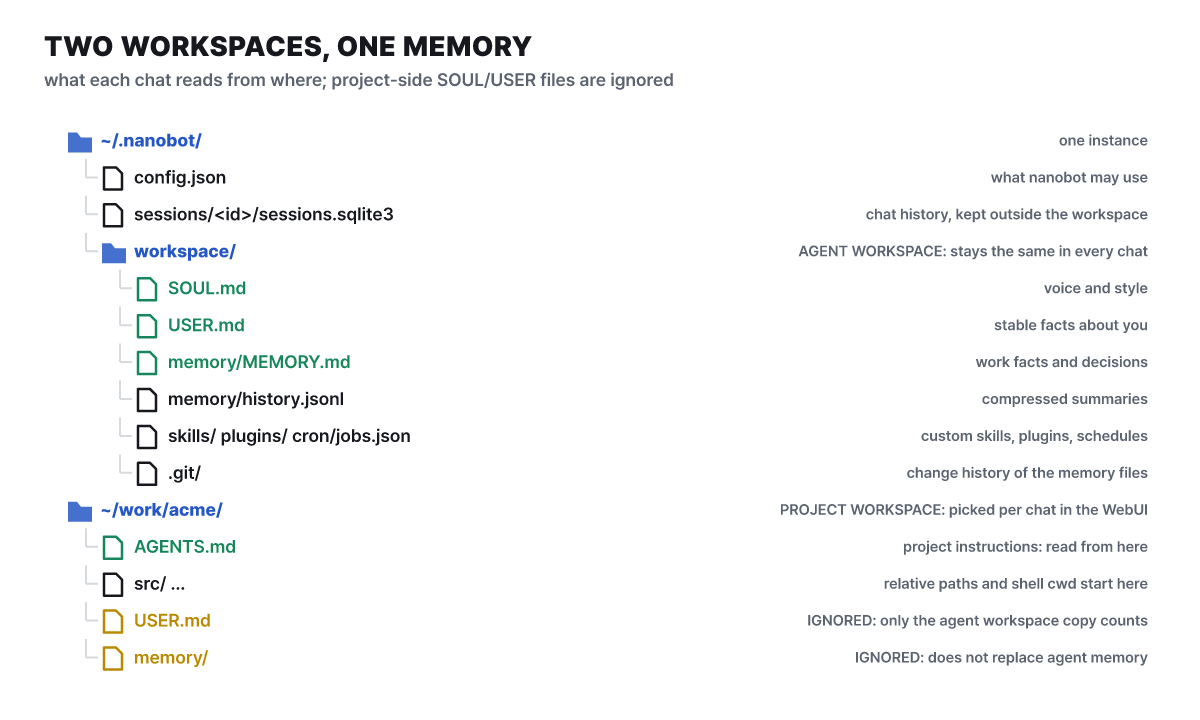 Figure 2. Green files are the ones actually read; yellow files are ignored even when they sit on the project side
When you change folders, the agent’s personality and memory stay the same. What the project decides is AGENTS.md (instructions), relative paths, the shell’s working directory, and the read and write boundary of Restricted mode. Even in Restricted mode, the file tools can reach the built-in skills, the custom skills in the agent workspace, and the single file memory/history.jsonl, read-only. The neighboring memory and profile files are not opened.
The consequence of this structure is clear. Splitting topics or changing project folders does not split long-term memory. Preferences built up from client A’s material can follow into client B’s work, and organizing with name tags does not block access. For work that must not mix, the official guidance is to create separate instances.
nanobot --home ~/.nanobot-work onboard
nanobot --home ~/.nanobot-work webui --port 8766 --gateway-port 18791
This puts settings, memory, skills and schedules in their own folders, and the chat apps must use separate bot credentials as well. However, running under the same operating system user does not create a file access boundary, so the docs state flatly that for users who don’t trust each other you must split down to operating system accounts or containers.
How a conversation becomes a memory file
nanobot’s memory is not one giant file but layers with different roles. Each layer is handled with different tools, and the files at the very bottom are ones a person can open and edit directly.
- Short-term memoryThe conversation in progress (session.messages). The context the model receives every turn
- Compressed summarymemory/history.jsonl. One JSON per line, a working record with a cursor marking how far it has been processed
- Lasting filesSOUL.md (tone), USER.md (what is stably known about you), memory/MEMORY.md (facts and decisions about the work)
- Change historyThe workspace's .git. GitStore records every time Dream edits a file
The order in which things harden from upper layers to lower ones has two stages, and the first is summarization (Consolidator).
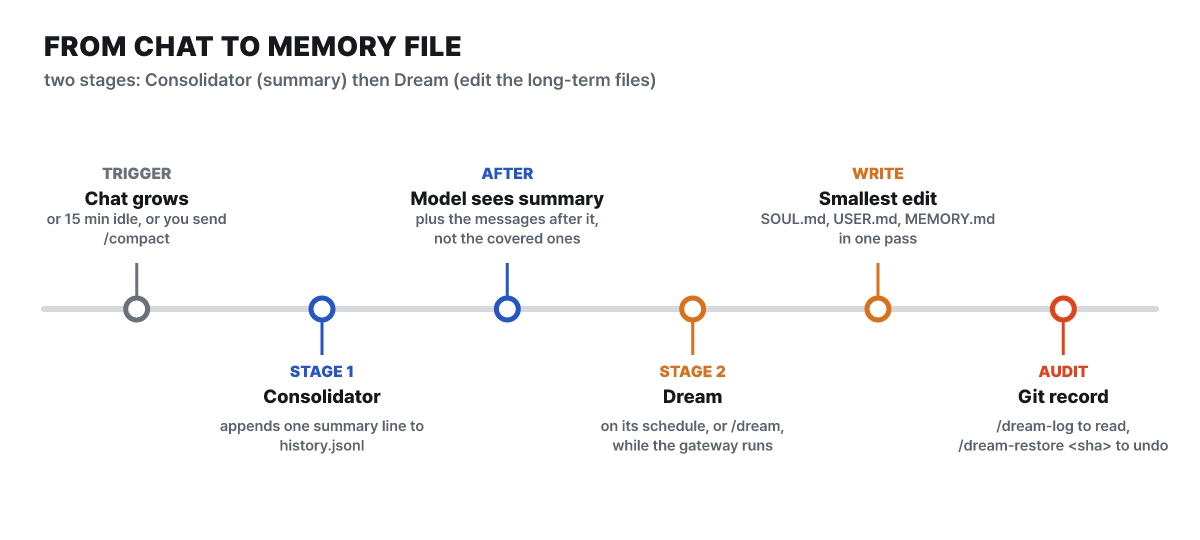 Figure 3. The first three points are summarization and the last three are Dream. You can roll back at the final point
Summarization happens when the conversation grows, when there is no conversation for a set time (15 minutes by default), or when you send /compact. It condenses the context so far into one line and appends it to history.jsonl, and from then on the model receives only the summary and the messages after it. The original conversation remains in the saved records, but the span covered by a summary no longer goes to the model as is, so a summary is lossy and details can drop out. Idle compression is turned off by setting agents.defaults.idleCompactAfterMinutes to 0, and automatic compression by default sends no notice to chat apps (turn it on with channels.showCompactionNotices).
The second stage is Dream. When turned on under Settings → Capabilities → Memory consolidation, it runs on a set cycle while the gateway is running, or when you send /dream. It reads the newly piled-up summaries together with the current SOUL.md, USER.md and MEMORY.md, and edits only the necessary parts, minimally and in one pass. This scheduler does not run on an instance started separately through the Python SDK. You set the cycle with intervalH under agents.defaults.dream (the docs’ settings example uses 2 hours) or with a cron expression, and if cron is present it takes priority. To run only Dream on a different model, put a model preset name in modelOverride. So that the file does not grow without limit even as the same summaries pile up, old lines Dream has processed are cleaned out, with a retention target of 1,000 lines, but lines not yet processed are kept even beyond the target.
You confirm that a memory went in correctly from the files, not from the agent’s reply. The agent’s “got it” alone doesn’t mean it was saved, and Dream may also judge that “there is no change worth keeping.” If you send /dream right after a short conversation without compression, there may be no summary to read and nothing happens. The check sequence the docs recommend is to state one preference (for example, “Write Acme release notes as short bullet points”), send /dream after /compact finishes, look at the last change with /dream-log, and ask the same question in a new topic to see whether it gets reused.
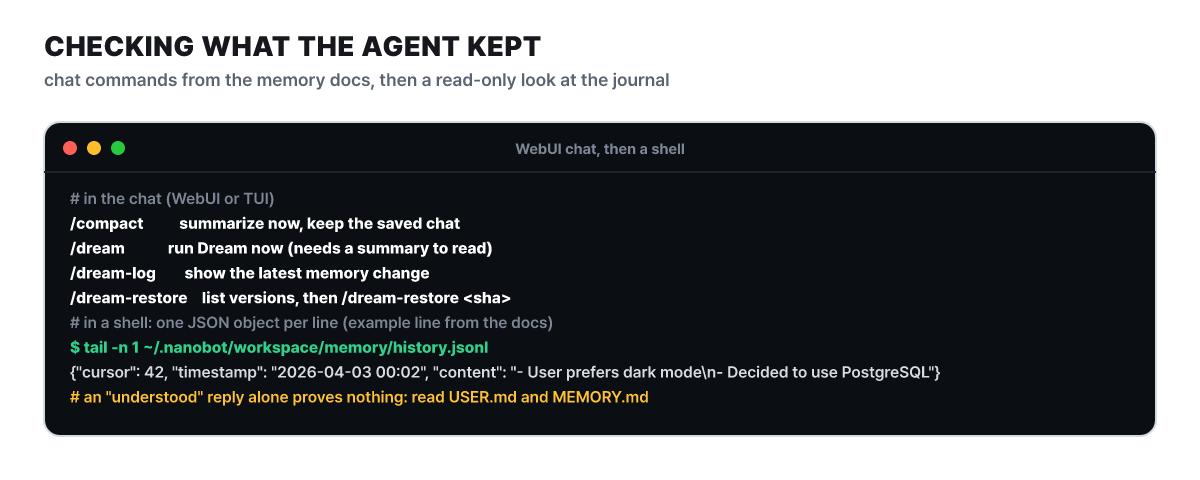 Figure 4. The top four lines are chat commands, and the single JSON line below is the example record from the official docs
There are three ways to fix a wrongly saved memory. You can tell it what to change and run compression and Dream again, edit the two files by hand in an editor (and also check that the summaries from before compression don’t still hold the old instruction), or use /dream-restore to see the list of recent versions and /dream-restore <sha> to return to the state just before that change. Restoring also rolls back other changes tied to the same version. To change the style of memory itself, create prompts/dream.md with /dream-prompt init and have Dream follow the instructions written in this file. The file is separate for each workspace, and deleting it or leaving it empty returns to the default behavior.
Three jobs that run unattended, and the limits of delivery
Because the gateway is resident, there are mechanisms that move the agent even when nobody types anything. The three have different purposes and are easy to mix up.
| Mechanism | How you make it | When it runs | Best for |
|---|---|---|---|
| Scheduled job (cron) | Ask in words in a goal conversation and the agent registers it with the cron tool | Once or repeatedly at set times (time, interval or cron expression) | Time-critical work like “summarize at 9 on weekdays” |
| Local trigger | Create /trigger name in a conversation and a one-line nanobot trigger command appears |
When a script, CI or webhook calls that command | Handing over results every time a build finishes |
| heartbeat | The system checks the to-dos in HEARTBEAT.md (on by default) |
At a loose interval, delivering to the recent conversation only when there is something worth reporting | “Watch the issues and tell me if something needs attention” |
A scheduled job’s result comes back to the very conversation where the schedule was made, so if you want to receive it in a different conversation, you have to create it in that conversation from the start. If the time matters, it is a schedule, and if the time can be loose and you only need to speak up when there is something to report, it is heartbeat. The docs say not to pick heartbeat just because something repeats, and heartbeat does not guarantee the requested time or interval. For a local trigger, typing /trigger review request in a conversation returns an ID starting with trg_ and the call command, and you either attach a sentence to this command directly or pipe in another program’s output.
nanobot trigger trg_8K4P2Q9X "Review PR #4502"
generate-report | nanobot trigger trg_8K4P2Q9X
A trigger’s delivery is kept in the workspace until the agent’s turn finishes successfully, and if the target conversation is busy, it doesn’t cut into the turn in progress and waits until it is free. Because delivery is at-least-once, the same message can arrive twice, so the caller must be built to tolerate duplicates. Webhook servers, external authentication and turning events into messages are outside nanobot. A long job with a clear objective can be handed over with /goal <objective>, which the gateway carries across multiple turns while it is running, and you cut it off with /stop.
It is also worth knowing where to look when a job that ran in the small hours failed to deliver its result. A scheduled job’s final message is first stored on disk in the outbox (delivery/outbox.sqlite3) as a per-recipient delivery record (the queue holds up to 256), then sent to the channel, and on success it is marked sent, which is not a read receipt. Only when the channel reports for certain that it “could not send a single character” does the gateway retry every 30 seconds for up to an hour, and the model is not called again at that point. Conversely, if the request ended in a timeout or the gateway stopped mid-send, the other side may already have received it, so it is not resent automatically and is left as unknown. To avoid duplicates, look at the receiving conversation first and resend by hand if needed.
Remember three things about restarts. Schedule times missed during a restart are not run again. Interrupted sub-agent tasks are not resumed automatically and are marked interrupted. nanobot gateway –background will not bring itself back up after the computer is turned off and on or the process dies, so if you plan to run it overnight, hand it to the operating system’s own management, such as a systemd user service, a macOS LaunchAgent or Docker Compose.
Doors open by default: four layers of locks
This section matters more than the feature list. This is a tool that puts files and a shell in an agent’s hands, so you need to know which doors are open by default. The four red marks in Figure 1 are the four rows of the table below.
| Lock | Default state | How to tighten |
|---|---|---|
| 1 Chat app access | With allowFrom empty, a pairing code (valid 10 minutes) must be approved before anyone can talk. DMs on Slack and Mattermost are open by default |
Set dm.policy to allowlist for Slack and Mattermost. ["*"] allows everyone, so use it only for testing |
| 2 Shell tool | The shell (exec) is on |
Setting tools.exec.enable to false means the shell tool is not registered at all. For MCP, limit exposed tools with enabledTools |
| 3 File scope | tools.restrictToWorkspace is false |
Setting it to true restricts the file tools to inside the workspace. It is app-level protection, not an OS sandbox |
| 4 Shell sandbox | tools.exec.sandbox is empty |
bwrap on Linux, seatbelt on macOS. Windows has no supported backend |
There are two more things to know on the chat app side. For versions up to v0.1.4.post3, an empty allowFrom meant allow everyone, and from post4 it became deny everyone, so check if you inherited old settings. And on Slack the DM policy and the channel (group) policy are independent, so with the group policy at its default of mention, any member who can see the channel can call the bot by mentioning it. In the docs, mention-only is a condition for reacting, not a trust boundary.
For production use, the docs tell you to turn on both the file restriction and the shell sandbox, and turning on the sandbox automatically turns on the file tools’ workspace restriction too.
{
  "tools": {
    "restrictToWorkspace": true,
    "exec": { "enable": true, "sandbox": "seatbelt" }
  }
}
macOS uses seatbelt, and Linux uses bwrap (apt install bubblewrap, already installed in the official Docker image). The sandbox leaves the workspace readable and writable and system folders read-only, and blocks paths not on its list, such as the parent folder of the workspace holding the config file and ~/.ssh. On the other hand, it cannot block the network. Stopping the shell from reaching outside needs outbound connection controls on the host or container separately. On macOS, HOME and the temp folder are swapped for the workspace, so the docs tell you to make temp files in the form mktemp "$TMPDIR/job.XXXXXX", and for tools that need other installs or caches you grant narrow read and write exceptions (sandboxRoBinds, sandboxRwBinds). Dangerous command patterns (rm -rf /, fork bombs, disk formatting) are blocked by default, but that is a supplementary measure, not isolation.
Apart from the four layers of locks, the WebUI has one more key.
A person who logs in to the WebUI co-manages the same instance, with no per-user roles or private topics. Granting chat app permission and handing over the WebUI password are entirely different things. If you bind to 0.0.0.0 to use it from other devices on the same network, nanobot refuses to start without a token or tokenIssueSecret, but that secret is still the admin key. Treat the login link shown in the terminal on first run as secret too, including everything after the #.
The repository’s SECURITY.md recommends keeping secrets in the config file as environment variable references like "apiKey": "${ANTHROPIC_API_KEY}" rather than plaintext, narrowing permissions with chmod 600 ~/.nanobot/config.json when you do use plaintext, and not running as root. You also need to be careful about the paths through which outside code comes in. A stdio MCP server runs a process on your computer, and skills from marketplaces (skills.sh, SkillHub) can include instructions and executable scripts written by third parties, so read the original before downloading. HTTP and SSE MCP and web fetch have SSRF protection that blocks requests to private network addresses, but the shell and stdio servers sit outside that protection, so locks 2 to 4 above take its place.