Is Gemini CLI still usable? Free ended, API keys work
Since June 18, free and personal AI Pro/Ultra accounts can't use Gemini CLI and must move to Antigravity CLI. Paid keys and company licenses are unaffected.
If you followed an old “use Gemini CLI for free” guide, installed it and signed in with your Google account, but requests do not come back properly, check one thing before you reinstall or clear any cache. Google ended Gemini CLI request processing for personal accounts after those guides were written. On the other hand, people who use the same tool with an API key or a company license were never affected, and migrating unnecessarily could only clutter their setup. The tool has the same name but the outcome depends on how you sign in, so this guide starts from “how did you sign in?” instead of from the symptom and lists what to do on each path. Figures and versions were rechecked as of 2026-10-27 UTC.
One login method splits you into five paths
The core of Google’s announcement, posted on its developer blog on May 19, 2026, is simple. From June 18, Gemini CLI and the Gemini Code Assist IDE extension no longer process requests from individual free users and Google AI Pro and Ultra subscribers, and Antigravity CLI takes their place. The notice says Gemini CLI remains available with a paid Gemini API key and a Gemini Enterprise Agent Platform API key, and that access for organizations with Gemini Code Assist Standard or Enterprise licenses is unchanged. The notice at the top of the repository README says the same: the free tier and Google One users have been replaced by Antigravity CLI.
The figure below redraws that announcement by login method. Start from the question on the left and just see whether your method falls in the red area or the green area.
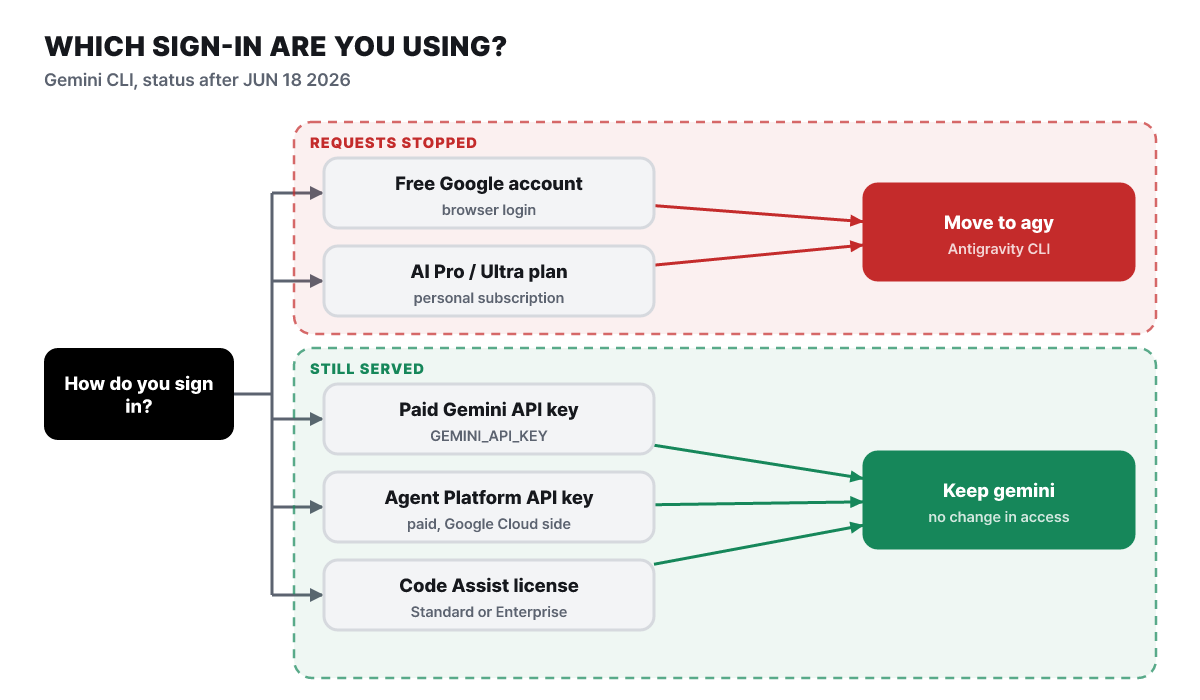 Figure 1. Personal free and subscription logins go to agy; paid keys and company licenses stay on gemini
The red area holds the two methods where you sign in to a Google account in the browser (free, and personal AI Pro or Ultra), and the other three are in the green area. The confusing part is that a subscription with the same name lands on a different side depending on whether you bought it personally or it comes from a company license. Official docs still contain old instructions here and there that tell personal accounts to sign in with Google, but the notice at the top of the docs and the announcement take precedence.
If you are not sure which side you are on, start by running the three lines below in a terminal. They are read-only commands that never print the value of a key.
gemini --version
[ -n "$GEMINI_API_KEY" ] && echo "GEMINI_API_KEY: set" || echo "GEMINI_API_KEY: unset"
npm view @google/gemini-cli dist-tags
The first line shows the installed version, the second shows only whether the key environment variable is set, and the third shows the latest npm version per channel (latest, preview, nightly). If the key is unset and you had been using browser sign-in, you are most likely in the red area. Even when the key is set, you need to check separately whether it is a free-tier or paid key, because the announcement explicitly keeps access only for paid keys.
What ended for personal accounts on June 18
Antigravity CLI opened to everyone on May 19, the day of the announcement, and a month later, on June 18, request processing stopped for personal Gemini CLI and the Code Assist IDE extension. On the same day Gemini Code Assist for GitHub could no longer be newly installed on organizations, and existing requests were announced to stop in sequence over the following weeks. Organizations that use Code Assist for GitHub through Google Cloud keep their access, though.
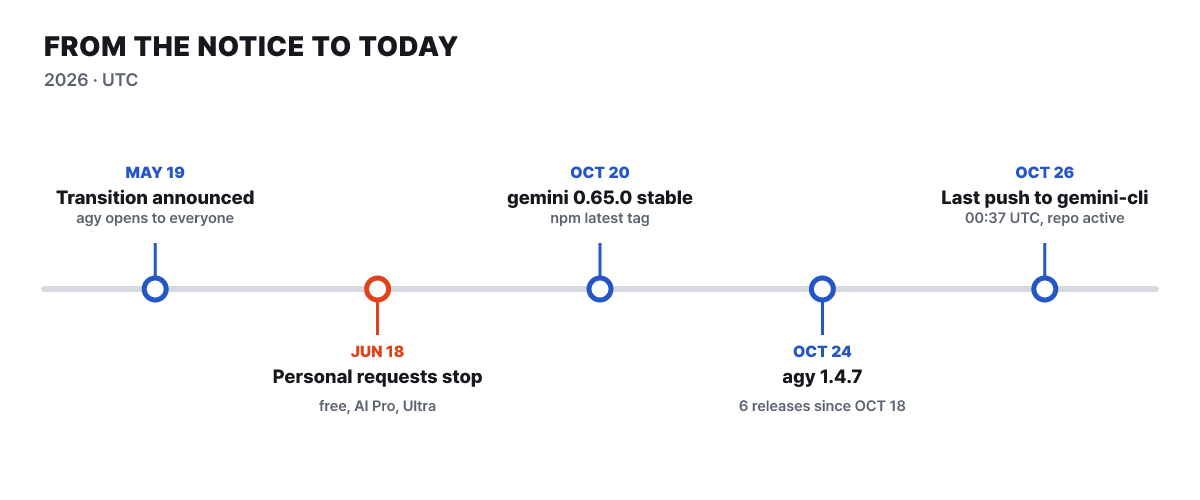 Figure 2. Dates for the two tools. The red dot marks the day personal requests stopped
The numbers on the repository side show the tool has not shut down. google-gemini/gemini-cli keeps 108,405 stars, 14,839 forks and the Apache-2.0 license, and its last push was on Oct 26 at 00:37 UTC. The npm stable build 0.65.0 went out on Oct 20, the preview build 0.66.0-preview.0 came out the same day, and nightly is updated daily, now in the 0.67.0 line. Weekly downloads in the latest counting window (Oct 16-22) were 231,316. But a download count is only installs, not the number of accounts whose requests get processed. Being installed does not mean it works right now, so the login check above comes first.
The Antigravity CLI side moves fast. According to the official repository’s changelog, there were six releases in one week, from 1.4.2 on Oct 18 to 1.4.7 on Oct 24. In the same period Gemini CLI had one stable release.
Moving over: from installing agy to carrying over settings
If you are in the red area, the official migration doc brings over a good part of your settings automatically. Install with curl -fsSL https://antigravity.google/cli/install.sh | bash on macOS and Linux, or irm https://antigravity.google/cli/install.ps1 | iex in Windows PowerShell, and the command you run is agy. If running a script the moment it downloads makes you uneasy, you can save the script to a file first, read it and then run it. Authentication checks the operating system keychain first and moves on to Google sign-in if there is no session. Locally a browser opens, and in an SSH session an authentication URL is printed.
The migration goes in this order.
- Run
agyfor the first time. It finds your existing Gemini CLI settings, asks through a checklist what to convert, and moves your login token to the operating system keychain. - Leave
GEMINI.mdandAGENTS.mdalone. It reads the two files in the working folder and the global~/.gemini/GEMINI.mdas they are. - Bring extensions over with
agy plugin import gemini. Skills, agents, commands and MCP servers are converted to the new plugin structure, and custom commands are converted to skills. - Move the skill folders by hand. Global skills go from
~/.gemini/skills/to~/.gemini/antigravity-cli/skills/, and working-folder skills from.gemini/skills/to.agents/skills/, so that they are recognized as slash commands. - Pull the MCP settings out of
settings.jsonand put them in a separatemcp_config.json(~/.gemini/config/for global,.agents/for the working folder). Change theurlandhttpUrlkeys of remote servers toserverUrl.
When you run the import, one line of conversion results appears per extension. Part of the output shown in the official doc looks like this.
[ok]   google-workspace
       ✔ skills     : 5 skills processed
       ✔ commands   : 2 legacy commands converted to skills
       ✔ mcpServers : 1 server definition migrated to mcp_config.json
After you move, the commands you are used to change. Picking out only the commonly used ones from the migration doc and the CLI reference gives the following.
| What you want to do | Gemini CLI | Antigravity CLI |
|---|---|---|
| Ask once and finish | gemini -p "..." |
agy -p "..." |
| Continue a previous conversation | gemini --resume |
agy -c, /resume in a conversation |
| Have it only make a plan | Plan mode (experimental) | /plan, --mode plan |
| Go back to an earlier point | Rewind, checkpoint /restore |
/rewind (alias /undo) |
| Check usage | /stats model |
/usage, /credits |
| Reuse frequent instructions | TOML custom commands | Skills (/skills), existing commands converted to skills |
Some custom terminal themes and experimental screen effects may not be supported, and Google said from the start that the two tools’ features are not one-to-one. Option names used in scripts may differ too, so it is safer to run them on a separate branch first. As its name says, the --dangerously-skip-permissions flag, which skips approval for every tool, should not be used outside an isolated environment.
Staying put: paid keys and release channels
If you are in the green area and use a key, it works exactly the way the README describes. Get a key from Google AI Studio and pass it in through an environment variable.
npm install -g @google/gemini-cli
export GEMINI_API_KEY="YOUR_API_KEY"
gemini
Besides npm, the README also lists Homebrew (brew install gemini-cli), MacPorts, npx @google/gemini-cli for running without installing, and an Anaconda route for restricted environments. There are three authentication methods: Google account sign-in, a Gemini API key, and Vertex AI. Personal sign-in now falls in the red area, so the real choices on the staying side are an API key (no project setup, billed by usage) and Vertex AI (one of gcloud authentication, a service account JSON key or a Google Cloud API key, specified together with a project ID and region).
There are two ways to leave a key in the environment, and each has a pitfall. If you put it in a shell config file (such as ~/.zshrc), every process launched from that shell can read the value. If you use a .gemini/.env file, only the first file found while walking up from the current folder is read and multiple files are not merged, so a .env made in a project folder can shadow the ~/.gemini/.env in your home and leave the key unread.
There are three release channels. Stable (the latest tag) comes out every Tuesday at 20:00 UTC, preview (the preview tag) the same day at 23:59 UTC, and nightly every day at 00:00 UTC. Stable is the previous week’s preview build, verified and promoted, so unless you have a particular reason, stable is the safe choice.
Using a key bills you for what you use. The official quota doc also says that billing is per call, so frequent calls with few tokens can cost more. When an agent reads files and makes many repeated calls, the amount can climb fast, so set a usage limit and alerts on the API key before the first run. Typing /stats model in a session shows the current session’s token usage and limits, and a model usage summary also appears when you end the session.
The README adds one more thing: Gemini CLI is not optimized for the latest Gemini models, and to use Gemini 4 Argon you should use Antigravity. Continuing with a key means accepting that the benefits of the newest models reach Antigravity first.
What “unchanged” covers for company licenses
Organizations that use Code Assist Standard or Enterprise licenses are the group the announcement says keeps access unchanged. This sentence can be read as covering three things. Access to Gemini CLI and the IDE extension is kept, Code Assist for GitHub used through Google Cloud is kept, and The Register’s report quoted a product lead saying the Gemini CLI repository will keep receiving the latest model updates and bug and security fixes for enterprise customers. That means there is no reason to hurry, and if you do want to move, a path through the same organization account is open.
For organizations that do want to move to Antigravity CLI, the changelog has some facts. The README says enterprise users must connect a GCP project during onboarding, and the 1.4.1 entry says that for Business accounts signing in with a Google Cloud project and Application Default Credentials (AGY_ADC_AUTH), prompts, content and model responses are not collected, so the telemetry item in /config shows as off. A problem where skills, rules, plugins and hooks did not load when signing in this way was fixed in 1.4.7. That the data consent structure differs for a company account compared with a personal one is the first item in the earlier review.
The refill interval differs by tool
“When does it refill” shapes the experience more than “how many times a day.” Gemini CLI’s official quota doc (last updated June 18) lists requests per user per day by authentication method in a table, while Antigravity sets a refresh cycle in hours for each plan.
| Authentication method | Requests per day (doc table) | After June 18 |
|---|---|---|
| Personal Google account (Code Assist Individual) | 1,000 | Stopped |
| Google AI Pro | 1,500 | Stopped |
| Google AI Ultra | 2,000 | Stopped |
| Code Assist Standard | 1,500 | Continues |
| Code Assist Enterprise | 2,000 | Continues |
| Workspace AI Ultra | 2,000 | Still in the table |
| Gemini API key, free tier | 250 | Still in the table |
| Gemini API key, paid, Vertex AI | Variable | Continues |
Pay-as-you-go keys and Vertex AI vary with the pricing tier, model and token usage, so the table says “Variable.” The announcement directly says access continues for paid keys, and the free-tier key row shows the value exactly as it appears in the doc table.
Now the refill intervals as bars. The figure below converts the cycles written in the Antigravity plan doc and the Gemini CLI quota doc into hours.
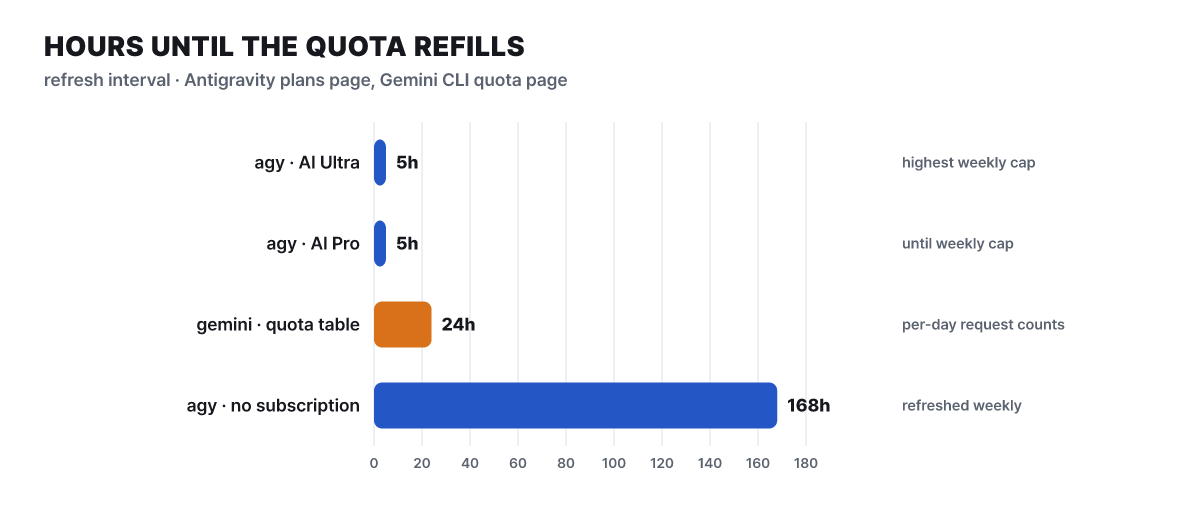 Figure 3. The interval at which limits refill. 5 hours, 24 hours and 168 hours (once a week) are the editorial team’s conversion of the docs’ cycles into hours
Ultra and Pro refill every 5 hours, but Pro has to wait for a refresh once it reaches the weekly limit, while Ultra has the highest weekly limit. A personal account without a subscription has a limit that refills once a week, so if you spend it all in one day you wait through the remaining six. The doc says consumption varies with the agent’s workload and that limits can change. The Register said some users reported reaching the weekly limit after only a few requests, but that is a personal account of experience and should not be read as evidence that everyone will see the same.
Pro and Ultra can keep going with AI credits after using up the limit. If the AI Credit Overages setting is Never, credits are not used automatically and you wait until the limit refreshes; if it is Always, credits are used when the base limit runs out, and you return to the base limit once it refreshes. If responses stop during development, the first check is /usage (alias /quota) inside the CLI for per-model usage and /credits for remaining credits.
Open source and data consent split the choice
After limits, the next conditions that split the choice are source and data. The Register reported that Gemini CLI remains Apache-2.0 open source, while the Antigravity CLI GitHub repository holds only a changelog, a README and demo images, with no source code published. The repository info also shows Antigravity CLI with 2,637 stars and 254 forks, and GitHub displays no license. In the developer community there were complaints about the forced migration, usage limits and the move to closed source.
| Item | Gemini CLI | Antigravity CLI |
|---|---|---|
| Command | gemini |
agy |
| Implementation language | TypeScript | Go |
| Source | Fully public on GitHub, Apache-2.0 | Only changelog, README and demo images public |
| GitHub stars | 108,405 | 2,637 |
| Latest release | Stable 0.65.0 (Oct 20) | 1.4.7 (Oct 24), 6 per week |
| Non-interactive run | -p, JSON and stream-json output |
-p, JSON and stream-json output, schema option |
| Extension unit | Extensions | Plugins |
| Usage records | Session records stored locally (~/.gemini/tmp) |
Structure where you consent to interaction data collection, can be declined in settings |
The last row is the part worth reading from a security angle. The Antigravity CLI README says it is a structure where you consent to collecting interaction data, which you can decline in settings at any time. It also warns about the risks of an AI agent’s autonomous code execution, data exfiltration and prompt injection (an attack that tricks an agent with instructions hidden in a document or web page), and recommends watching and verifying everything the agent does. If you handle company code with a personal account, check this consent item first on your first run.
The changelog also shows defensive improvements. From 1.4.6, commands inside the sandbox cannot read or change ~/.docker, ~/.kube and ~/_netrc by default, so commands that use those credentials must be explicitly allowed. In 1.4.7, Auto mode asks for fewer approvals for everyday commands such as cleaning up temporary files or running a formatter. That trades fewer approval prompts for speed, so it is worth watching in the first few days which commands pass automatically.
For CI that runs on a key, look at the exit code first
CI has no cached login, so it has to authenticate with a key from an environment variable, which makes overnight jobs that ran on a personal login the first place to break. In non-interactive runs you give the prompt with -p and choose the output format. The screen below collects the output keys and exit codes the docs define on one sheet. It shows the doc’s format, not a log from an actual run.
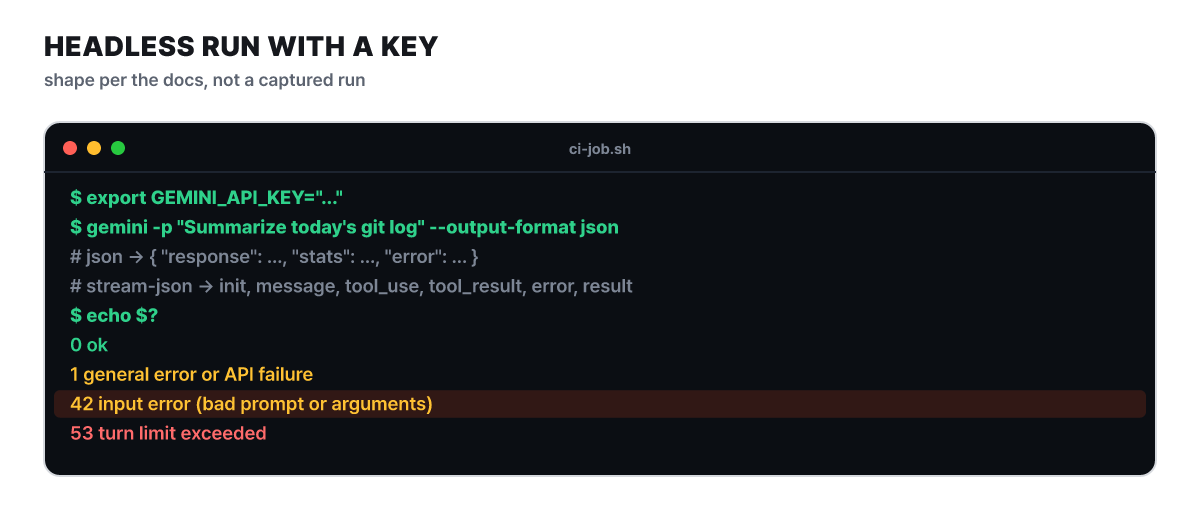 Figure 4. Output shape and exit codes of a headless run (per the docs)
--output-format json returns one JSON object containing the answer (response), token usage and latency (stats), and error information on failure (error). stream-json streams line-by-line events and is good for watching long jobs; there are six event types: init, message, tool_use, tool_result, error and result. When a script decides success or failure, it looks at the exit code, not the output content. 42 means the prompt or an argument was invalid, and 53 means the turn limit was exceeded, so even for the same failure the place to fix differs.
export GEMINI_API_KEY="YOUR_API_KEY"
out=$(gemini -p "Summarize today's git log" --output-format json)
code=$?
if [ "$code" -eq 0 ]; then printf '%s' "$out" | jq -r '.response'; else echo "failed: $code" >&2; fi
For CI moved to Antigravity CLI, use -p (or --print) with --output-format to choose text, json or stream-json, and you can use --json-schema to enforce the output structure and --print-timeout for a time limit. In 1.4.7, headless -p runs no longer build a conversation search index, screen output or custom status line commands, which cut CPU use considerably, so you may notice this on low-spec runners.
Three settings to turn on before opening an unfamiliar repository
An agent edits files and runs shell commands. Config files or docs in an unfamiliar repository can influence the agent’s behavior, so a folder you open for the first time is the riskiest. Gemini CLI has three defenses, and all are off by default, so you have to turn them on yourself.
- Checkpointing. Put
"general": { "checkpointing": { "enabled": true } }insettings.json, and the state just before you approve a file edit is saved in a separate git repository in your home directory (a per-project folder under~/.gemini/history/). It does not touch the project’s git, and running/restorewith no argument shows the list of saves. - Trusted Folders. Turning on
"security": { "folderTrust": { "enabled": true } }blocks the project’s.gemini/settings.json, the project’s.env, MCP server connections, extension installs and automatic tool approval in folders you have not trusted. Trust decisions are kept in~/.gemini/trustedFolders.json. The release notes for stable 0.65.0 also include a fix that forces workspace settings to be read-only in untrusted folders. - Sandbox.
gemini -s(or theGEMINI_SANDBOXenvironment variable) isolates tool execution. On macOS the default profile ispermissive-open, which limits only writes and allows the network, so for strict use pick a profile such asstrict-proxied.
In an environment like CI where a dialog cannot be shown, if Trusted Folders gets in the way you can skip the trust check with the --skip-trust flag or GEMINI_CLI_TRUST_WORKSPACE=true. It is convenient, but it should not be used in a pipeline that receives untrusted input.
When two tools read one repository
It is common on a team for someone to use gemini with a key and someone else to use agy. Splitting instruction files into two sets soon drifts apart, so one approach is to unify them as a single AGENTS.md. Antigravity CLI reads GEMINI.md and AGENTS.md together. Gemini CLI reads GEMINI.md by default, but you can change the file names it reads in settings.
{ "context": { "fileName": ["AGENTS.md", "GEMINI.md"] } }Gemini CLI merges GEMINI.md in the order of global (~/.gemini/GEMINI.md), the working folder, and subfolders loaded when files there are accessed, and sends it with every prompt; /memory show lets you check what is actually sent. When you suspect the two tools interpret the same file differently, asking the same question in both is the fastest way to find out.
Conversation history is not shared. A conversation started in the CLI can be brought into the Antigravity 2.0 desktop app, though, and the app loads it from the @conversation list.
Four things to check within a week of switching
The items to check within a week, for those who moved and those who stayed, are as follows.
- If you moved to agy, check per-model usage and credits with
/usageand/credits, and split large jobs to match your plan's refill interval (5 hours or once a week) - Read the converted and skipped items in the
agy plugin import geminioutput, and confirm that you moved the skill and MCP settings paths by hand - Reopen the interaction data collection item you agreed to on the first run and set it according to whether the account handles company code
- If you keep using gemini with a key, set a usage limit and alerts on the API key, and confirm that CI scripts decide failure by exit code