Before building n8n AI agents, check license and approvals
n8n is fair-code, not open source. Pick an edition and setup by who receives it, who runs the server, execution volume, and whether agents need approval.
Starting n8n with npx or a single docker run line goes smoothly on day one. The trouble shows up a few weeks later, in three places. You use it for company work and someone asks, “Can we install this on a client’s server too?” The SQLite file holding your execution history keeps growing. And when webhooks pile up at peak hours, even the editor slows down. Add an AI agent and a fourth problem appears: the moment a tool the model picked does something irreversible, such as sending an email. This article walks through license, edition, setup and approval, in that order, so you settle all four at the start instead of meeting them one by one after installation. Figures and versions were checked on 2026-10-27 by reopening the official repository, the docs and the pricing page. The GitHub repository has 208.7k stars and 61.3k forks, and the stable release is n8n@2.44.7, published on October 26.
The license splits the moment you hand n8n to someone else
The README describes n8n as a “fair-code” platform for building and deploying AI agents and workflows. That is not the same as open source. The fair-code movement’s site describes it as a model, not a license: software that is generally free to use and distribute, with source available and open to extension by anyone, but where the author can restrict commercial use. n8n’s LICENSE.md says the terms differ from file to file.
- General code on the master branch is under the Sustainable Use License 1.0.
- Code whose file name contains
.ee.or whose folder name containseeis outside that license and requires a separate n8n Enterprise License. - Content on branches other than master is not licensed.
- Third-party components follow their own original licenses.
The restrictions in the Sustainable Use License are short. You may use and modify the software only for your own internal business purposes or for non-commercial or personal use. You may distribute it to others, or make it available to them, only if it is free and non-commercial. You cannot change, remove or obscure license and copyright notices, and trademarks must be used in line with the applicable law. A violation ends the license automatically, but if you stop within 30 days of notice from the provider, the license is restored retroactively. A repeat violation after restoration ends it permanently. Modified versions must carry a prominent notice that they were changed.
Even among AI workflow tools, licenses take very different shapes, so when you switch tools you have to reread the terms first.
| Tool | License shape (per each repository’s license file) |
|---|---|
| n8n | Sustainable Use License 1.0. Limited to internal business and non-commercial use; some code needs a separate Enterprise License |
| Dify | Modified Apache 2.0. No running a multi-tenant service (one workspace equals one tenant) without written permission; logo and copyright notices must stay when you use the frontend |
| Flowise | Mostly Apache 2.0. Only some files, such as the server’s enterprise folder, are under a commercial license |
Holding the terms up against two situations shows where the line falls. The scenarios below are hypothetical, made up by the editors.
A 5-person marketing team installs it on an in-house server. Automating the team’s ad reports and alerts is internal business use, so you can read the terms as written. Modifying the code for internal use stays in the same range as long as the notices are kept.
A web agency installs n8n for each client and charges a monthly maintenance fee. This involves making n8n available to other people. The terms allow that only when it is free and non-commercial, so decide on this structure only after reading the original text yourself or asking n8n. Whether a setup where the client installs it under their own account and the agency only builds workflows gets the same ruling must also be checked against the original text. Paid installation and operation services, selling it embedded in a product, and modifications that remove the license notice from the screen fall on the same side.
Four ways to pick an edition
If you pass the license check, the next question is who runs the server. The docs page “Choose how to use n8n” first splits Cloud from self-hosting, then has you choose a plan or edition within each. The figure below condenses that order into three questions. Answer from the left and stop at the first box that fits.
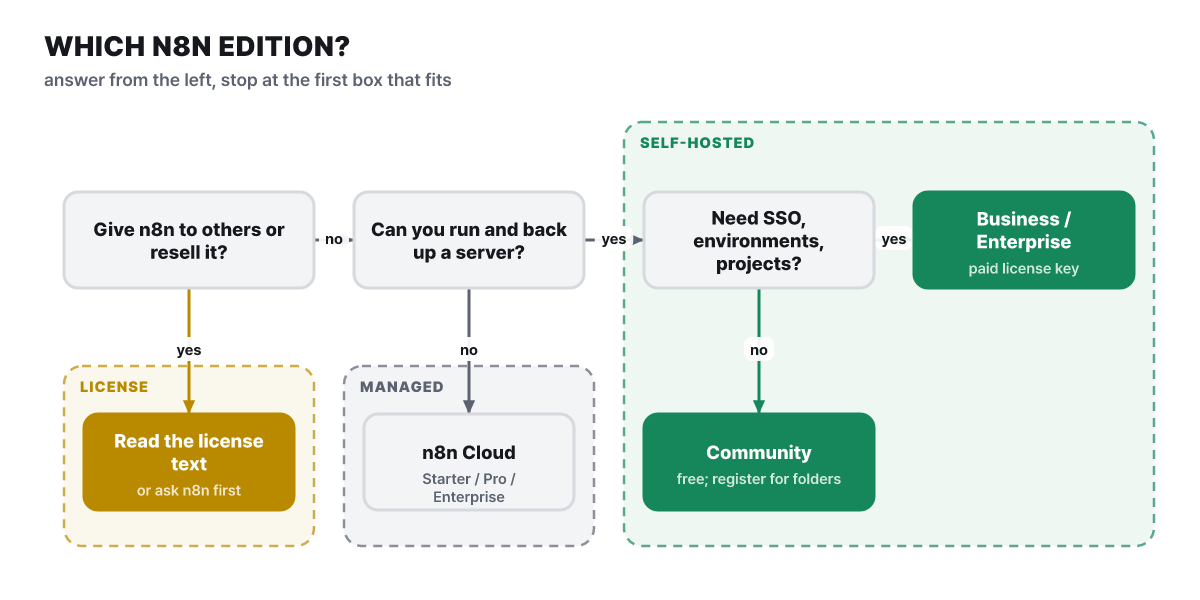 Figure 1. If the first answer is yes, start with the license text; if running a server is hard, go to Cloud
On the side where you can run a server there are three editions. Community is free and has nearly every feature. Registered Community means you register an email under Usage and plan in the Community settings to get a free license key, which unlocks folders, in-editor debugging and custom execution data. Paid Business and Enterprise unlock the rest with a license key. The installation is the same product, and the key switches features on. The features the docs say need a paid plan are custom variables, environments, external secrets, external storage of binary data, log streaming, multi-main mode, projects, SSO (SAML and LDAP), sharing of workflows and credentials, and Git version control. The docs separately note that standard logging and queue mode are not on the paid list.
The Cloud side offers a 14-day free trial (with Pro features), followed by the Starter, Pro and Enterprise plans. On the pricing page, Business is self-hosted only, and Business for Cloud is a waitlist. For someone building agents, the difference between Cloud and self-hosting is responsibility more than features. When you self-host, secret management, backups, upgrades and keeping your version in line with the security advisories covered later are all your job.
Converting Cloud prices into a cost per 1,000 executions
The pricing page (checked 2026-10-27) shows Cloud plans as a monthly equivalent of annual billing. The listed discount is “Save 17%,” and the page does not show a price for monthly billing. The key to reading the numbers is the definition of an “execution.” The page’s FAQ defines it as one run of an entire workflow. The number of steps or the amount of data processed does not affect the count. Dividing the monthly fee by the included executions puts the plans on one yardstick.
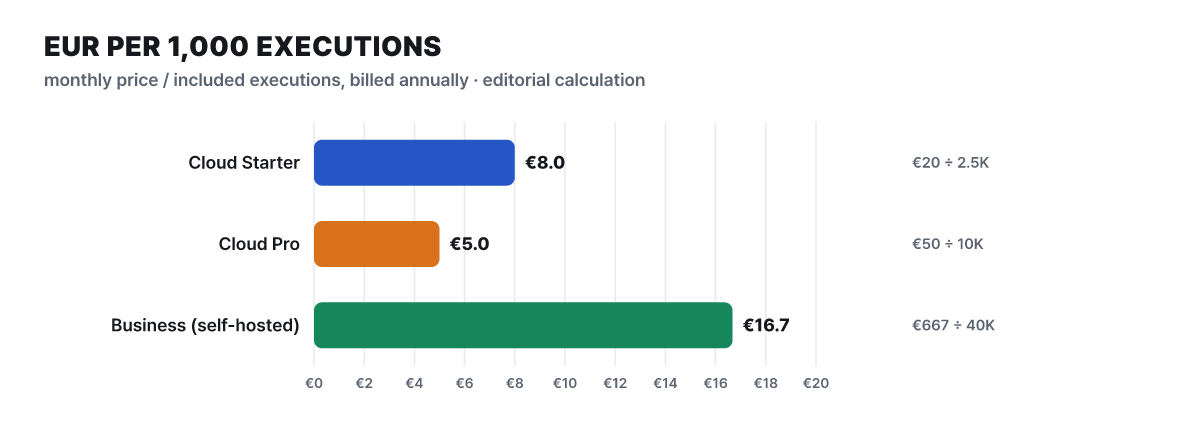 Figure 2. Monthly fee per 1,000 executions (annual billing, calculated by the editors)
Pro costs less per 1,000 executions than Starter. Self-hosted Business includes 40K executions for €667 a month, so its cost per 1,000 is the highest, but what that tier buys is not execution volume but features such as SSO, environments and projects, so it is not something to compare on the same yardstick. For an agent, the limits matter more than the price.
| Plan | Monthly executions | Concurrent executions | Max time per execution | Shared projects | Stored executions |
|---|---|---|---|---|---|
| Cloud Starter (€20/month) | 2.5K | 5 | 5 minutes | 1 | 2.5k |
| Cloud Pro (€50/month) | 10K | 20 / 50 | 40 minutes | 3 | 25k |
| Business, self-hosted (€667/month) | 40K | Not shown on pricing page | Not shown | 6 | Not shown |
| Enterprise | Contact sales | 200+ | 40 minutes | Unlimited | 50k |
One agent execution is a chain of several model calls, so whether the maximum time per execution is 5 or 40 minutes decides what kind of agent you can build. In terms of count, however many model calls it makes, one run of the workflow counts as one execution. Model usage fees are paid separately to the model provider, apart from the subscription.
Where the pricing page and the docs disagree. The docs’ edition comparison lists queue mode as a feature included in Community and multi-main mode as paid. The Business column on the pricing page lists “Queue mode for scaling.” The docs themselves say the feature set can change and the pricing page is the reference, so reopen the relevant column on the pricing page before you pay.
What the one-line install does, and what it leaves as a trial
Self-hosting centers on Docker. The docs’ one-line install is this command.
curl -fsSL https://get.n8n.io | shThis replaces the old npm install n8n and npx n8n. The docs state that from n8n 3.0 npm installation no longer works and n8n ships only through Docker, while existing npm installs keep running for now. Because it downloads a script and runs it immediately, the docs also describe a way to read it first.
curl -fsSL https://get.n8n.io -o get-n8n.sh
less get-n8n.sh   # read the contents
sh get-n8n.sh
On success you see a screen like this. It is the example output from the docs, and the version numbers are sample values.
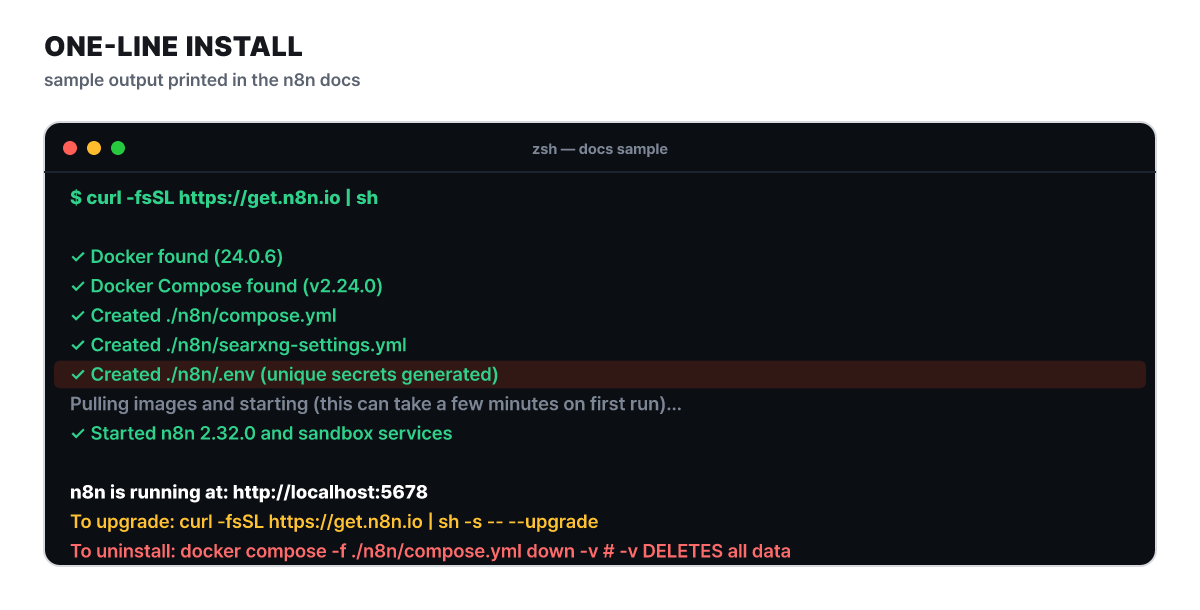 Figure 3. Successful output of the one-line install, as shown in the docs
The lines to look at in the output are the one saying unique secrets are generated in .env, and the -v in the removal command at the bottom. down -v deletes the volume, which means the data too. Running the script again in the same folder changes nothing and only reports that the files already exist, so running it several times is safe. You upgrade with --upgrade, which changes only the two lines N8N_VERSION and N8N_SANDBOX_VERSION in .env and leaves your data, secrets and other settings as they are. The docs say to run it under WSL on Windows, and n8n has not verified the full script on Git Bash.
This setup is a version meant for trying things out. The default database is SQLite, a single file, and a sandbox where the n8n Assistant runs code plus a search tool start alongside. The only port reachable from outside is n8n’s 5678. The Assistant itself stays off until you enter an AI provider key. The docs separately recommend Daytona instead of the bundled sandbox in production. If you use your own Docker Compose setup, the minimum is 4GB of RAM and 2 vCPUs, you replace every change-me placeholder in the secrets with random values you generate, and you keep .env out of version control. The sandbox runner (sandbox-runner) must not be exposed externally, so open only the n8n port in the firewall.
When executions pile up: SQLite, Postgres and queue mode
The setup climbs through three stages as scale grows. What changes at each stage differs, so here they are in one table.
| Stage | Setup | When to move up | Key settings |
|---|---|---|---|
| 1. Trial | One n8n container + SQLite | Using it alone or a few workflows | One-line install defaults |
| 2. Always-on | n8n + Postgres | More users or workflows running 24 hours | DB_TYPE=postgresdb, DB_POSTGRESDB_* |
| 3. Distributed | Main + Redis + workers + Postgres | Executions pile up and one process is not enough | EXECUTIONS_MODE=queue, n8n worker |
Three things to know when moving to stage 2. Existing SQLite data is not migrated automatically, so the guidance is to start fresh with a new instance. If you must move it, the docs have export and import commands. When you use the Postgres 18 image in the Docker Compose example, you must not delete the PGDATA line. The docs warn about it directly: without that line, Postgres 18 writes data to a place the volume does not cover, and the database starts out empty. The encryption key stays in the .n8n folder even with Postgres and can be set explicitly with N8N_ENCRYPTION_KEY, so treat it as the key that reads your stored credentials and back it up.
Stage 3, queue mode, splits the work between a main instance that receives triggers and webhooks and workers that actually run workflows. Here is the path one webhook takes.
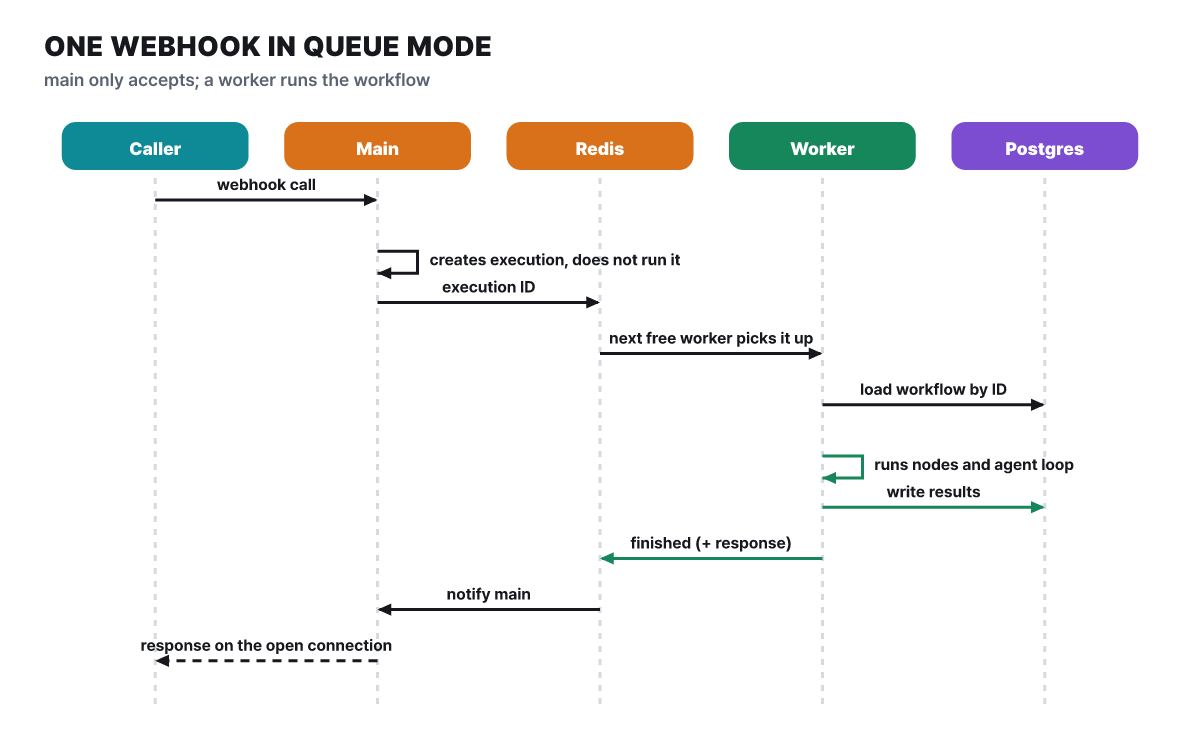 Figure 4. The main only accepts the request and a worker does the running; the response returns over the connection the caller left open
The main creates the execution record and does not run anything. It puts only the execution ID into Redis, and an idle worker uses that ID to read the workflow from the database and run it. The key settings are giving EXECUTIONS_MODE=queue to the main and every worker, and making the N8N_ENCRYPTION_KEY of every worker the same as the main’s. A worker starts with n8n worker, runs 10 executions at once by default, and you change that with --concurrency. The docs recommend 5 or more, because many workers with a small value exhaust the database connection pool and cause delays and failures. SQLite is not recommended in queue mode, and you need both Redis and a database.
There is also an intermediate measure you can use before going to queue mode. In regular mode there is no limit on concurrent production executions, so if too many overlap the event loop falls behind. If you set N8N_CONCURRENCY_PRODUCTION_LIMIT to something like 20, executions started by webhooks or triggers wait in a first-in, first-out queue once they exceed that number. It is off by default and does not apply to manual executions or sub-workflow executions. If webhooks piling up is the problem, you can add processes that receive only webhooks (n8n webhook), and the docs say not to put the main behind the load balancer in that case, because a main that takes requests becomes heavy and the editor slows down. Multi-main, with several mains, opens only on Enterprise.
Agents add one specific trap. The Simple Memory node is not guaranteed to reach the same worker every time when there are several workers, so the docs warn against using it in production workflows that run in queue mode. If you need conversation memory across several workers, design around a different memory node.
Execution history: 14 days, 10,000 records
Pruning of execution data is on by default. Records are deleted oldest first once they finished more than 336 hours (14 days) ago or the total exceeds 10,000. Running or waiting executions and those with tags or ratings are not deleted, and a one-hour safety buffer keeps records that just finished from disappearing. If the default limits do not fit, change them with environment variables.
export EXECUTIONS_DATA_PRUNE=true
export EXECUTIONS_DATA_MAX_AGE=168          # in hours, default 336
export EXECUTIONS_DATA_PRUNE_MAX_COUNT=50000   # default 10000
export EXECUTIONS_DATA_SAVE_ON_SUCCESS=none    # do not save successful executions
With SQLite, deleting does not shrink the file; the freed space is only reused by later records. To get the space back, turn on DB_SQLITE_VACUUM_ON_STARTUP or run VACUUM yourself. Not saving successful executions saves disk, but it also removes the evidence for tracing which tool the agent called with which values, so for workflows with approvals it is better to keep both failures and successes.
Things that talk to the outside by default. By default, a self-hosted instance exchanges update notifications, workflow templates and diagnostic information with n8n’s servers. According to the “Isolate n8n” example in the docs, you can turn these off by setting N8N_DIAGNOSTICS_ENABLED, N8N_VERSION_NOTIFICATIONS_ENABLED and N8N_TEMPLATES_ENABLED to false. In an air-gapped style environment, decide this right after installation.
How many model calls one agent node makes
In n8n, an agent is one node. You attach a chat model and one or more tools to the AI Agent node, and the model decides for itself which tool to call. The docs draw the distinction this way: a chain calls AI components in a fixed order, while in an agent the model decides the actions. The official comparison example routes a chat input containing “agent” to the agent node and one containing “chain” to the Basic LLM Chain; the chain side has only the model, and the agent side additionally has Simple Memory and a Wikipedia tool. From 1.82.0, every AI Agent node runs as a Tools Agent, which follows LangChain’s tool-calling specification.
There are two numbers to note on this node when choosing an edition. One is Max Iterations, the maximum number of times the model runs to produce a good answer, and the default is 10. In tasks that go through several tools, this value drives the cost and time of one execution, so run the task a few times before raising it. It ties in with the execution time limit in the price table above. The other is the scope of memory. Attaching a memory node to a chat trigger makes a conversation that continues over several turns, but it is not kept between sessions, and Simple Memory has two settings: the session key, and the context window length that decides how many previous interactions to look at.
The device that lets the model fill in tool parameters is $fromAI(). You write it in an expression field like this.
{{ $fromAI('email') }}
{{ $fromAI('numItemsInStock', 'Number of items in stock', 'number', 5) }}
The arguments are, in order, a key (1 to 64 letters, digits, underscores or hyphens), a description, a type (string, number, boolean, json) and a default value. The key is a hint for the model, not a reference to existing data, and it works only in tools connected to an agent, not in the Code tool. These values show up as is on the approval screen in the next section.
A rule for which tools get approval
If you give an agent tools such as sending email, editing records or deleting data, the cost of a wrong model judgment gets large. The n8n docs’ “Human-in-the-loop for tools” pauses the workflow just before a particular tool is called and lets a person approve or deny it. You can apply it to all tools connected to the agent or only to some.
- The agent decides to call a tool that has a review.
- The workflow pauses and an approval request goes to the channel you set.
- The reviewer sees which tool is about to be called with which parameters.
- If approved, the tool runs with exactly the input the model chose; if denied, it does not run, and the agent is told it was denied.
For setup, you open the Human review item in the agent node’s tool panel, choose a channel, and connect the tool you want reviewed to that step. There are nine channels: Chat, Slack, Discord, Telegram, Microsoft Teams, Gmail, WhatsApp Business Cloud, Google Chat and Outlook. The review channel can differ from the channel where users talk to the agent, so the user can talk to the agent in n8n chat while approval requests go to the owner’s Slack. The review message includes $tool.name and $tool.parameters, showing what the agent is about to do.
The AI wants to use {{ $tool.name }} with the following parameters:
{{ JSON.stringify($tool.parameters, null, 2) }}
Values filled in by $fromAI() also appear as is on the reviewer’s screen, so the person approving sees the values the model chose and decides. A review step inside a sub-agent that is used as another agent’s tool also works correctly. The docs recommend it for irreversible actions, outbound communication, purchases and compliance-related steps. Another piece of advice from the docs is to apply it broadly at first and narrow it as trust builds.
What happens after a denial is decided by the system prompt. The docs warn you to write the tools that need approval and the response on denial in the system prompt, so that the agent does not quietly move past a denial but tells the user or offers an alternative. Take a hypothetical agent that tidies a 5-person team’s shared inquiry mailbox, and it looks like this. The example below was made up by the editors to show a setup, and the on-screen wording may differ from the real thing.
[System message]
- Use the mail lookup and search tools without approval.
- The reply-sending tool needs human approval. If denied, do not send the mail;
  tell the user it was denied and show only the draft.

[Flow]
User   Gather the refund inquiries from yesterday that have no reply yet and write reply drafts.
Agent  (runs the lookup tool, no approval) 3 are waiting. I will call the send tool.
n8n    Workflow paused; tool name, recipient, subject and body sent to the owner's Slack
Owner  (denies)
Agent  The send was denied, so no mail was sent. I will leave the drafts below.
Two October security advisories and the upgrade rule they set
On the official GitHub security advisories list, n8n is a product with frequent advisories. Even the two most recent batches include flaws that bear directly on running agents.
| Advisory date | Representative flaw (GHSA number) | Fixed versions |
|---|---|---|
| Sep 30 | Shared prototype tampering in the MCP workflow validator leads to owner account takeover (GHSA-5jr4-xmvf-frmj, high; accounts with MFA not affected) | 2.41.4, 2.42.1 or later |
| Sep 30 | HMAC bypass in the Send-and-Wait node lets a pending execution be approved without authentication (GHSA-728h-pmr2-7cgh, high) | 2.41.4, 2.42.1 or later |
| Oct 14 | Stored XSS through a webhook response path missing a signature (GHSA-mp7q-23hg-35cf, high) | 1.123.85, 2.43.5, 2.44.1 or later |
All 10 entries on the first page of the list are dated October 14, with 3 rated high and 7 rated medium. The current stable release, 2.44.7 (October 26), is above the fixed versions listed here, and on the 1.x line 1.123.88 came out the same day. The second row, Send-and-Wait, is the node that asks a person for approval, so if you have a workflow that uses an approval step, first check whether a public trigger sits in front of this node. The advisory explains that whoever holds the resume token could approve in someone else’s place, and says the fix is upgrading, not a workaround. For the first row, the MCP feature is a server built into the instance, so the advisory suggests turning it off if you do not use it as a workaround.
The rule is simple. If you started with the one-line install, regularly check that N8N_VERSION in .env points to the stable line, and before upgrading, back up N8N_ENCRYPTION_KEY and the database. The upgrade is the one --upgrade line seen earlier. While you postpone an upgrade, you need a shield. For webhooks, choose authentication from Basic, Header, JWT and n8n user auth (OAuth2). If you leave the IP allowlist empty, the webhook can be called from any address, and addresses not on the list get a 403. The webhook body limit is 16MB, and self-hosting changes it with N8N_PAYLOAD_SIZE_MAX.
The shield on the outbound side is SSRF protection. From 2.12.0, turning it on with N8N_SSRF_PROTECTION_ENABLED=true checks requests from user-facing nodes such as HTTP Request against blocked ranges, and also inspects redirect targets and DNS resolution results. An agent decides which address to request during the conversation, so manipulated input could point at a cloud metadata address or an internal service, which is why this control matters. The default blocked ranges include private addresses such as 10.0.0.0/8, 172.16.0.0/12 and 192.168.0.0/16, the 127.0.0.0/8 loopback, and the 169.254.0.0/16 link-local range. Open internal services you need to allow with N8N_SSRF_ALLOWED_HOSTNAMES or N8N_SSRF_ALLOWED_IP_RANGES, and because allowing a hostname skips the IP block check, list only names you manage. The docs define this as an extra line of defense and say to put network controls such as firewalls and security groups in place first.
For a read-only check there is n8n audit. Run it in the CLI of the environment where n8n runs, and when calling it through the API, authenticate as the instance owner.
n8n auditThe report is divided into five categories. Credentials flags those not used in any workflow or absent from recently active workflows. Database flags expressions inside SQL node queries. File system flags nodes that touch files. Nodes flags risky nodes that can run code on the host and community nodes. Instance flags unprotected webhooks and outdated versions.
Four things to check in the week after installation
If you get through these four in the week you install, the paths that split earlier are reflected in your settings.
- License Write in one line whether this instance is for internal business or is offered to someone, and if offering is involved, keep the license text or the result of asking n8n alongside it
- Version and backup Check that
N8N_VERSIONin.envis on the latest stable line, and back upN8N_ENCRYPTION_KEYand the database before upgrading - Operating setup If it runs all the time, check whether you moved to Postgres; for queue mode, whether every worker has the same encryption key and Simple Memory is not used; and whether the execution history retention period fits
- Agent shield Connect read tools first, put Human review on write, delete and send tools, write the behavior on denial into the system message, and make sure you set Max Iterations and webhook authentication