Orca, with 100,000 stars, runs five agents on one screen
Orca runs CLI agents in separate worktrees in one MIT open-source app. Five scenes cover comparing, status, remote runs, permission bypass and quota use.
Orca is not an app that makes agents smarter. It takes over the chores that fall on a person when several agents run at once: walking through tabs to see which one has finished, duplicating folders, switching branches, and comparing two results by eye. The price is that the limits on the subscriptions you already use drain in proportion to how many agents run in parallel, and agents launch with permission checks skipped by default. Instead of listing features, this article follows five scenes you would meet in a single day and looks at which feature does the work in each one and what the catch is.
stablyai/orca on GitHub is an MIT-licensed desktop app created by Stably AI on Mar 17. As of Oct 27, 2026 (UTC) it has about 106,800 stars, about 6,700 forks and 16,667 commits on main, and the Oct 21 release notes (v1.4.237) record the 100,000-star mark. The latest release is v1.4.241 from Oct 26. The releases page lists six releases from v1.4.235 on Oct 20 through Oct 26, so the project changes quickly, and everything below is based on the official docs (onorca.dev/docs) and release notes as of that date.
A morning spent solving one login bug three ways
Say there is a bug where login fails intermittently (an example made up by the editors). You do not know which agent will fix it best, so you hand all three the same prompt. That is the use the official recipe “Race three agents on the same task” recommends, and the first-session doc aims to get you from an empty app to this state in five minutes.
- Add a repository Use Add Repo in the sidebar to connect a local checkout. The default branch of that repository becomes the base ref
- Create a worktree Click + next to the repository name and type a name (for example, fix-bug). If you leave it blank, a sea-creature name is assigned. The starting point is usually origin/main
- Pick an agent In the agent combo box of the newly opened terminal, choose something like Claude Code, Codex or Cursor CLI. The login from the subscription you already use carries over as is
- Do it twice more Create fix-bug-2 and fix-bug-3 from the same starting point, launch a different agent in each, and paste in the identical prompt
- Split the screen Drag a tab to the right edge of a panel to split it left and right, or to the bottom edge to split it top and bottom
A worktree is a feature git already has. The repository history (.git) exists only once, and each branch gets its own working folder, so three agents can edit the same repository at the same time without overwriting each other’s files. Orca does this setup for you. In the new worktree dialog you choose the project, where to run (Run on), the agent, the name and the starting point (Branch from), and in the name field you can also link a GitHub PR, a Linear issue, a GitLab MR or a Jira issue. When you click create, the dialog closes right away while git fetch and git worktree add run in the background, and if they fail the tab shows the error with Retry. Once about ten have piled up, press Cmd-J to open the jump palette, type part of a task name, then press Enter to go there or Shift-Enter to attach it to a split view.
With three panes side by side, it looks like this.
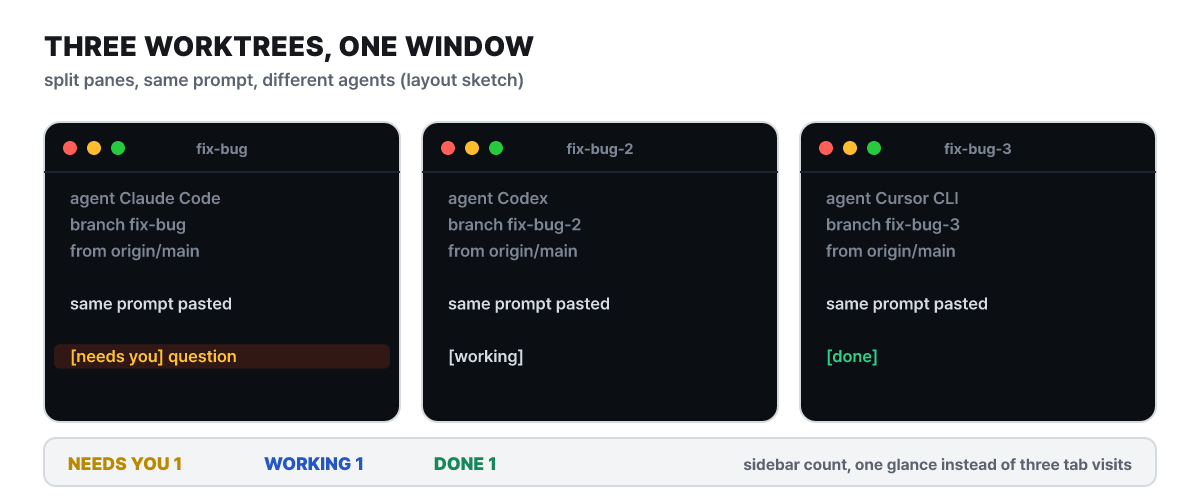 Figure 1. Example layout with three worktree panes (a screen the editors drew to match the docs, not actual output)
You do not need to flip through three tabs. The Needs You count in the sidebar and the status marker on each pane tell you which pane to look at first. How those status markers are produced is covered in the third scene.
When all three finish, open the diff in each worktree. The official recipe’s basis for comparison is agreement, not a score. Each agent goes wrong in a different way, so if all three reach the same conclusion it is likely right, and the points where they diverge are the hard part of the problem, the explanation says. In the example, if two fix the session-token expiry handling and one fixes a cookie attribute, that difference is where a person has to read closely. The docs explain that running them in parallel this way costs less than retrying the same task one after another.
Once you have picked the best one, leave comments line by line on the diff. Click the + that appears when you hover over the gutter, or put the cursor on a line and press c; for several lines, drag or extend with Shift. Markdown works, and Enter saves. When you are done, click Send to agent and every comment is bundled into one prompt with line locations attached. The docs explain that this is designed to send them as a bundle because an agent that receives them one line at a time keeps changing direction. After the fix, comments stay anchored to their lines for checking, a thread you mark Resolve collapses, and unresolved comments go along with the next send.
You can also finish up inside the app. Stage changes by hunk or by file, write the commit message yourself or get a draft with Generate with AI, and commit with Cmd-Enter (Ctrl-Enter on Windows and Linux). The repository’s pre-commit hook runs as usual, and if it fails the output appears inline. Click Fix with AI and the hook output, the message you tried and the list of staged files go to the agent as a repair prompt. The agent is not told to bypass the hook or to commit or push. Push sends to origin and sets the upstream the first time, and it does not quietly force push when the branch has fallen behind. If you rewrote history, Force push with lease appears as a separate action and shows how many commits will be replaced. After pushing, you confirm the base branch, title, description and whether it is a Draft, then open the PR. Merging is not covered in the docs, so leave everything after the PR to your usual GitHub flow. Delete the two worktrees that lost, and the folder and branch disappear together.
The new folder has no .env
The second scene comes right after the first. All three agents start with “there is no environment variable file” and “dependencies are not installed.” A worktree is a clean checkout, so files that git ignores, such as .env and node_modules, are not there.
The difference is clear when you look at the folder layout. What exists in the default checkout but not in the new worktree is the ignored files, and Orca either lets the worktrees share them through symbolic links or copies them into each worktree.
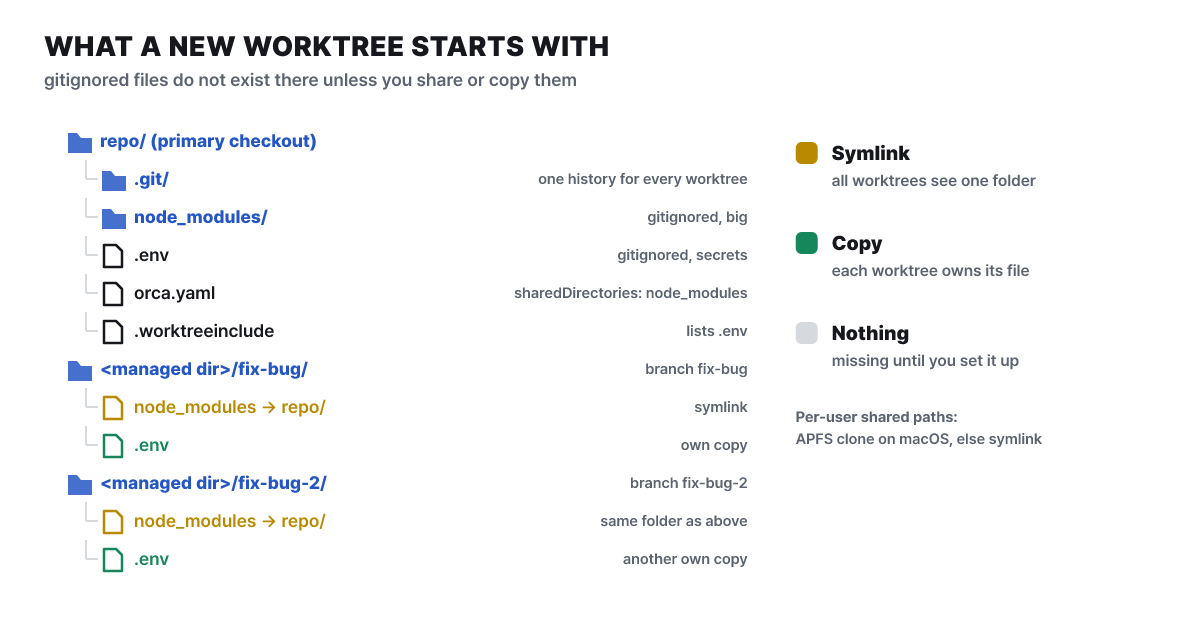 Figure 2. What a new worktree inherits. Folder names and locations are a diagram to show the shape
The three worktrees look at the same linked folder, while each worktree has its own copy of a copied file. So the docs guide you to link multi-gigabyte node_modules and to copy config files an agent may be allowed to change. There are three methods.
| Method | Where to set it | Behavior | Suited for |
|---|---|---|---|
| Worktree shared paths | Repository in settings (per user) | Pulled from the default checkout. On macOS it clones if APFS cloning works, otherwise makes a symbolic link | Paths used only on your own computer |
worktree.sharedDirectories |
orca.yaml at the repository root |
Shared by symbolic link (not copied) | Large regenerable folders such as node_modules and .cache |
.worktreeinclude |
Repository root | Copied into each worktree | Local settings such as .env and .vscode/settings.json |
In orca.yaml, write the folder names to share like this.
worktree:
  sharedDirectories:
    - node_modules
    - .cache
.worktreeinclude takes one path per line and allows blank lines and # comments. Globs (*) and ! negation patterns are not supported and are skipped with a warning.
.env
.env.local
.vscode/settings.json
There are conditions too. A folder listed in orca.yaml must be a gitignored path that actually exists in the default checkout, and paths that git is tracking or that do not exist are skipped. Entries in orca.yaml are added to the per-user list, not substituted for it, and a path that is already shared is not copied again by .worktreeinclude. If you put these two files into the repository before creating the first worktree, you can skip the second scene.
Over lunch, one pane turned into a yellow question mark
When you come back from lunch, the first thing you do is look for which of the five panes is waiting for you. Orca reads status from the title signals (OSC) that agents send to the terminal and from the agents’ hooks. For Claude Code, Orca attaches a status line hook at launch so that it emits title events. That is why markers appear only on agents Orca knows, while plain shells and unknown CLIs get no marker at all. The same reason lies behind the advice to launch agents from the combo box instead of typing the agent name into the terminal yourself.
| Marker | Meaning |
|---|---|
| Spinner | Working |
| Yellow question mark | Waiting for permission or input. The Needs You count in the sidebar uses the same marker |
| Green check (dashboard) or green dot (sidebar) | Finished or quietly active |
| Red dot | Blocked, interrupted or failed |
| Gray dot | Idle |
| No marker | Plain shell or an unknown agent CLI |
If you turn on Agent Dashboard under Experimental in settings, you get a kanban board with the columns Needs You, Working and Done, and the Idle column appears only if you turn on Show idle agents in the board settings. An agent counts as idle when no completion report has arrived for about 30 minutes. Clicking a card takes you to that agent’s terminal, and subagents of Claude and Codex unfold beneath the card. When an agent changes from working to idle, a completion notification appears, so you do not need to go through the tabs and can go only when a notification sounds. A tab whose agent process has ended gets a Restart chip, and clicking it relaunches the same agent in the same working directory, with Codex keeping the account it was using. That is handy when you come back after the laptop slept.
If you quit Orca during lunch or the computer restarted, what is left? Terminal processes are held by a background daemon rather than by the app, so what survives depends on what happened.
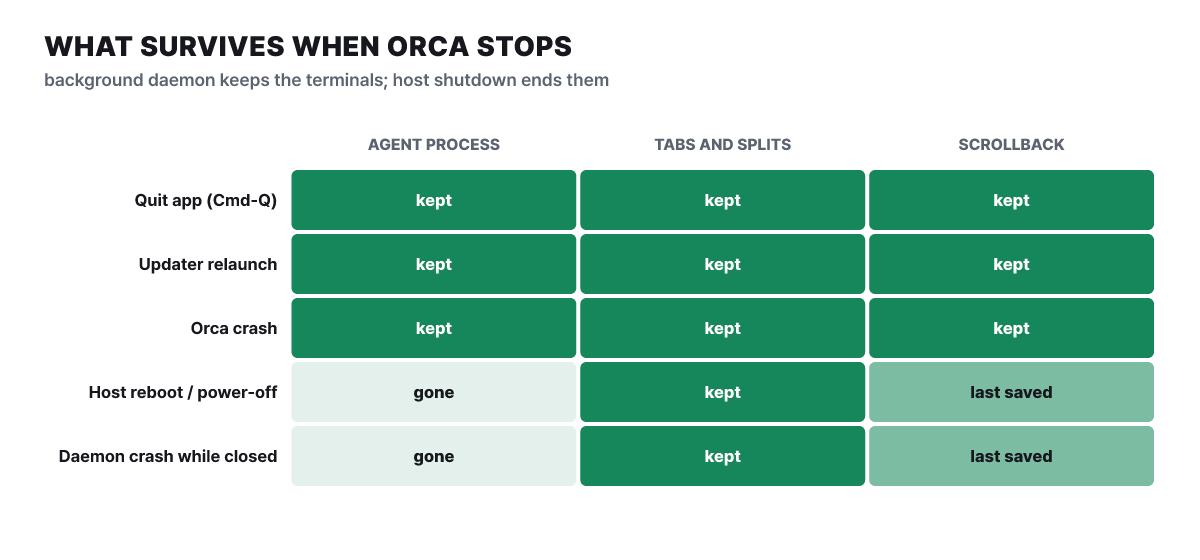 Figure 3. What survives in each situation (based on the session-restore doc)
If you quit with Cmd-Q, restart through an auto-update or Orca crashes, the agents keep working. When you reopen the app it attaches to the same processes, and output produced while the app was off remains in the scrollback. If the computer itself reboots or the daemon dies while the app is closed, the agents are gone and only the tab layout and the last saved scrollback come back. There is no start-fresh mode, so to start clean you have to close the worktrees yourself before quitting, and a worktree you closed does not reopen.
The most noticeable recent change in this same scene is the native chat you can use instead of the terminal. If you turn on Chat UI under Experimental in settings, a new agent tab opens not as a terminal screen but as a structured chat with a conversation history and an input box. Claude, Codex, Grok, OpenCode, Pi, OMP and Antigravity are supported, and the rest, along with WSL and SSH sessions, work as chat wrapped around a terminal. On a message you sent, click Rewind to here to go back to that point, edit the message and send it again. Chat state is restored even if the app restarts, and an interrupted chat asks whether you want to continue. Under Agents in settings you choose permissions from Manual, Auto and Yolo, and Auto is a mode where Claude and Codex approve routine actions on their own. In v1.4.241, chat was changed to follow each agent’s permission settings. It is still an experimental feature; the docs say they are continuing to refine record fidelity and parity with the terminal, and advise that the terminal view is better if you want to see every OSC and status.
An afternoon of clicking a button to get it fixed
The afternoon brings a screen bug. When a button is jammed against the card on its right and looks cramped, describing “increase the spacing on that button” in words means the agent first has to work out which element you mean. Orca’s built-in browser has a Design Mode that skips that step.
- Turn it on Turn on the Design Mode toggle in the browser toolbar. The cursor becomes an element picker, and the element you hover over is highlighted
- Click Click the problem button. The element's HTML, its computed CSS (color, font, spacing) and a cropped screenshot go into the agent terminal prompt as one attachment
- Say it Next to the attachment, write what you want changed and send it. If there are several elements, you can collect them in the annotation tray and send them all at once
- Check When the agent edits the source, Orca hot-reloads the page. Click the same element again to see the result
The source file and line number come through only when a dev-mode source map exists. Without one, only the HTML, CSS and screenshot are sent. Sent annotations are cleared from the tray once delivery finishes, while annotations you write or edit during delivery stay. Element picking has no default shortcut, and you can assign a key to Annotate page element under Shortcuts in settings.
The moment right after clicking a button with Design Mode, with the element info attached and placed in the prompt field (the conversation is an example made up by the editors)
This button is jammed against the card on the right and looks cramped. Increase the outer spacing
I increased the button's outer margin. The page has been reloaded, so please click the same button once more to check.
A browser opens separately for each worktree, and recent releases have worked on it a lot. v1.4.238 added address bar suggestions and per-site permissions, v1.4.239 added per-repository and per-workspace browser profiles, v1.4.240 added searchable browsing history that you can clear, and v1.4.241 added DevTools docking, tab muting and link address previews.
Agents that work off the computer, and one phone
In the evening you have to close the laptop. Running agents off the laptop is three of the four execution modes that the Orca docs lay out. The default is local execution, where agents, terminals and the browser run on the same computer as the UI.
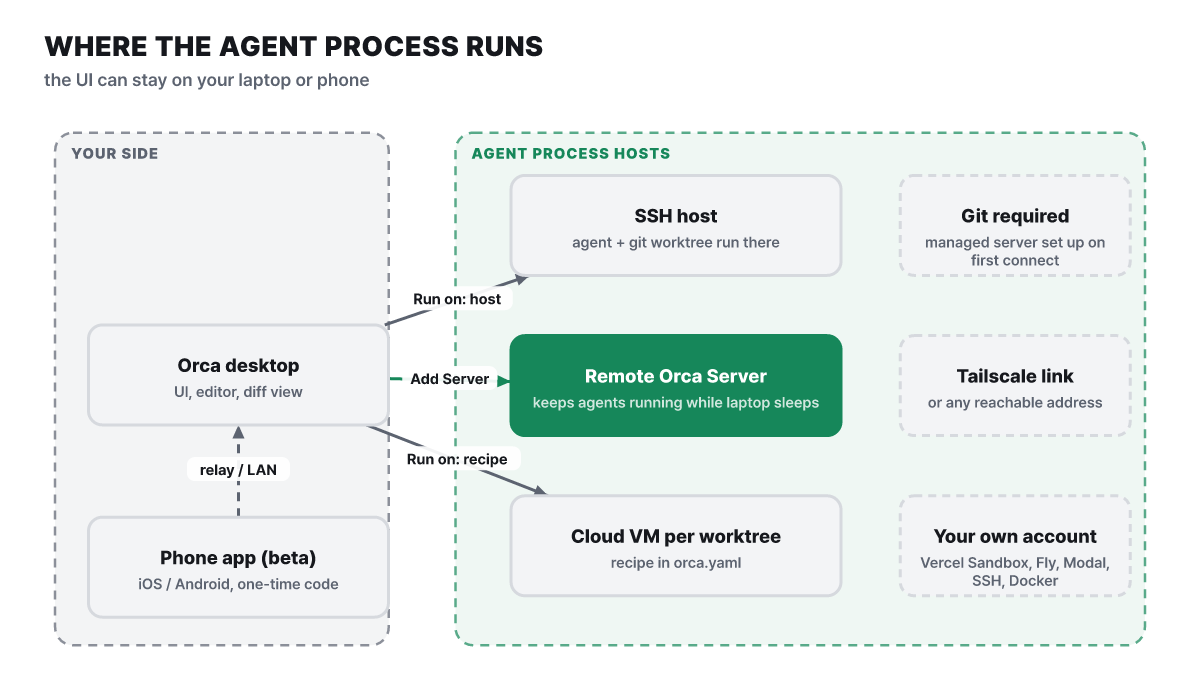 Figure 4. Three ways to keep the UI on my side and run only the agent processes elsewhere
With an SSH host, the agent and git worktree run remotely and only the editor and diff screens stay on your computer. Add the host under SSH in settings, test the connection, and choose that host in Run on when you create a worktree. The host needs git, and on first connection Orca installs its management server automatically, so a Node version mismatch or missing build tools is not an obstacle, the docs say.
A remote Orca server keeps Orca running all the time on a spare computer (a Mac mini, a VPS and so on). The server holds all projects, worktrees, terminals and agent processes, and your laptop, browser and phone attach as clients. The easiest setup is to install Orca and Tailscale on both sides, create a connection link with New Link under Advertise this app as a server in Remote Orca Servers on the server, and paste it into Add Server on the client. A headless server is started with this command.
orca serve --pairing-address <클라이언트가 닿을 수 있는 Tailscale 주소나 호스트 이름>Cloud VMs are an experimental feature. If you put an environment definition (recipe) in the repository’s orca.yaml, a disposable environment starts for each worktree. The providers are Vercel Sandbox, Fly, Modal, a generic SSH host and local Docker, and you pay the provider directly. Turn on Cloud VM in settings and tell an agent “Use the orca-per-workspace-env skill to set up a per-workspace environment for this repo.”; the recipe must be in orca.yaml in the default checkout to appear in the Run on list.
The phone is not for giving the server work directly. It is a remote control for watching agents that are already running and giving short answers. The mobile app is in beta, and you get it from the App Store on iOS and as an APK on Android. You take a one-time code from the desktop and enter it in the app’s Pair, and connecting through the relay requires a login. What you can do is view worktree and agent status, open the file tree and terminal scrollback, send a short reply or attach photos and files when an agent is waiting for input, get push notifications on completion, use source control (staging and committing), switch accounts and check usage, and create worktrees and start agents. It is not a full editor, and if the desktop turns off or the network drops, direct and LAN connections are lost.
Agents commanding agents is an extension of this scene. Orca has an orca command that ships inside the desktop app (register the Orca CLI under General in settings) and handles worktrees, terminals, files, the browser and scheduled automation through scripts. Most commands accept --json, and you start the check with read-only commands.
command -v orca
orca status --json
orca worktree ps --json
If you turn on orchestration under Experimental in settings, a coordinator agent creates tasks (Task), starts worker agents in new child worktrees and tracks them through completion and question messages. For a one-off prompt, orca terminal send fits better, and you use this route when you need completion reports or task-number tracking.
orca orchestration run-create --objective "Split checkout QA and summarize blockers" --json
orca orchestration task-create --spec "Audit billing settings for mobile layout" --task-title "Billing audit" --json
orca orchestration worker-start --task <taskId> --worktree new-child --name billing-audit --agent codex --setup run --json
orca orchestration check --wait --types worker_done,escalation,question --timeout-ms 900000 --json
Options change with each release, so the official advice is to read the latest with orca skills get orchestration --full after installing.
What the five scenes charge
Launching with no permission checks is the default. The docs state that Orca launches each agent with a full-autonomy flag. For example, Claude gets --dangerously-skip-permissions, Codex gets --dangerously-bypass-approvals-and-sandbox and Gemini gets --yolo, and the other agents on the list get their equivalents. In settings, the Trust the folder item, which skips the “do you trust this folder?” question when Orca starts an agent, is also on by default. The design treats a worktree as a kind of sandbox so that approval prompts do not break the flow. But a worktree is a folder that divides files, not operating-system-level isolation, so it does not stop an agent from reaching outside the folder. To change this, edit the per-agent launch arguments under Agents in settings (Reset restores them) and set Agent permissions for new terminal and chat sessions to Manual. For repositories you cannot trust, it is better to run them off your computer, such as on a cloud VM or an SSH host.
Deletion cannot be undone. Deleting a worktree removes the folder and the branch. In a bulk delete, branches that git refused because they hold unmerged commits are left in place and you are asked through a Review N Branches notice, but if you turn on Always force delete in the arrow menu, every later deletion is forced. The shortcut is to hover over the worktree and press Cmd-Shift-Backspace on macOS, or Ctrl-Shift-Backspace elsewhere. You can tidy up accumulated worktrees with Clean up workspaces in Resource Manager, filtering by status, recent activity, size and git state.
Parallel runs use up the limit by the same factor. When three agents solve the same task, the subscription limit drains three times as fast. The app shows Claude and Codex usage and reset times in the status bar and warns above 80%, but it does not reduce the consumption itself. The cost display is an estimate based on a local price table, so check actual spending in each provider’s console.
There are three ways to turn off the statistics. According to the docs, it ties data to an anonymous ID and collects the app version and OS, the number of app launches, the kinds of agents started, error categories and the names of changed settings, and it does not collect file paths, repository and branch names, prompts, terminal contents or commit messages. Turn off “Share anonymous usage data” under Privacy in settings, or use the environment variable DO_NOT_TRACK=1 or ORCA_TELEMETRY_DISABLED=1; applying just one is enough. The environment variables apply only to that run.
Opening many tabs costs memory. One agent is one live terminal, and the model session inside it holds memory. If you turn on agent sleep (an experimental feature, off by default), agents past the idle time (30 minutes by default, 1 minute to 24 hours) are stopped, and when you reopen the worktree they continue with a resume command such as claude --resume <id>. Agents that cannot resume, such as Cursor CLI, Hermes, Copilot and Trae, are not eligible for sleep and keep running. The supported-agent table lists 41 rows (the README says 34 kinds), and CLIs not on the list also run in the terminal, but the status dot is attached only to agents Orca recognizes.
What the five scenes confirmed is that the share Orca takes off your plate is, from start to finish, a person’s attention. Splitting folders, gathering status, showing differences and sending work off the laptop all save the viewer’s eyes, while the tokens and limits the agents use and the risk from bypassed permissions stay with the user exactly as before. So the value of this app depends less on how many agents you run than on how many results you can read to the end. If you run three and read only two, you spend the limit of three and get two. Before touching the settings, start by counting how many results you can read all the way through at one time.