Google ships 33 Android agent skills, from R8 to Compose
Google's android/skills repo has 33 SKILL.md files. We sort them by folder shape and area, open the AGP 9, R8 and edge-to-edge skills, and cover installation.
The Android an agent knows is the Android of its training cutoff, while the Android in android/skills has been revised as recently as October 22. The latest update date in the headers of the 33 skills is October 22, and 22 of them were revised in October. Google released this repository on GitHub under the Apache-2.0 license. As of October 27 (UTC) it has about 9,800 stars and 635 forks, and the latest release is v1.0.17, published at 14:35 UTC on October 23. The README says its selection criterion is to cover the use cases and workflows where LLMs score poorly in evaluations first, and that it deliberately put off areas where models are already strong, such as basic Compose best practices.
Introducing all 33 in order would just make a list, so this article first opens the folders and sorts them by shape, then groups them again by area, and finally looks inside a few skills at the extremes. The folder structure and line counts are values we counted ourselves after downloading the v1.0.17 repository on October 27.
Open three folders and the same name hides very different shapes
Every skill is a single folder with a SKILL.md in it. But the folders are a mix: some hold only SKILL.md, some have a string of reference documents attached, and some even contain Python code. In the figure below, the yellow scripts/ in the middle column is a folder that SKILL.md calls but that does not exist in the repository; the rest is the actual folder layout.
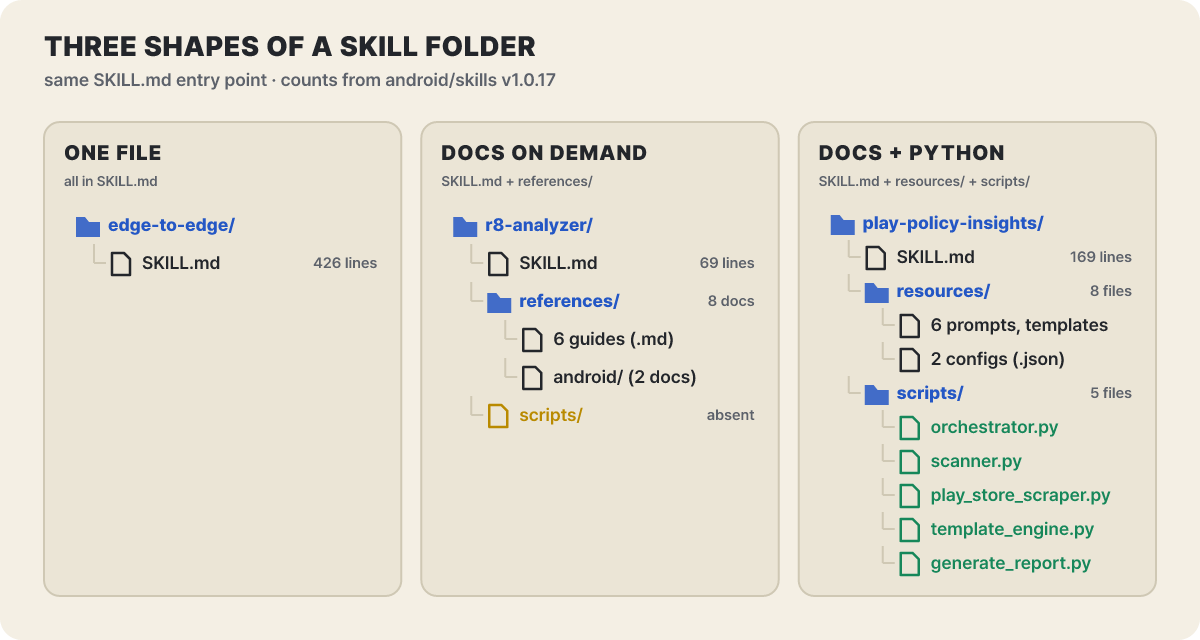 Figure 1. Three shapes of a skill folder. The scripts/ folder in the middle column is called by SKILL.md but is not in the repository tree
edge-to-edge on the left is nothing but a single 426-line SKILL.md. Planning, applying, the keyboard, lists, dialogs and the checklist are all inside it, so when the skill is activated it is read in one go. r8-analyzer in the middle has a short 69-line body and sends the details to 8 documents in references/. The agent opens only the documents the body points to, when it needs them.
play-policy-insights on the right is a different case. What its 169-line body tells the agent to do is “run scripts/orchestrator.py first.” That script statically analyzes the code to set audit goals and builds a prompt for a sub-agent for each goal. In an environment where sub-agents are available, it hands off up to 3 at the same time; if not, the agent reads the prompt files in order and carries them out itself. The skill states outright that if the script fails, the agent must not fall back on a manual audit but explain why and stop, and the run ends with a compliance_report.md. Though it is also called a “skill,” this one is closer to a small execution tool than to a manual.
Spread the 33 by body length and number of attached files
Turn the shapes into numbers and all 33 fit on one chart. The horizontal axis is the number of lines in SKILL.md, and the vertical axis is the number of other files in the same folder. The dotted lines are thresholds the editorial team drew arbitrarily (300 lines, 15 files) and are not an official division.
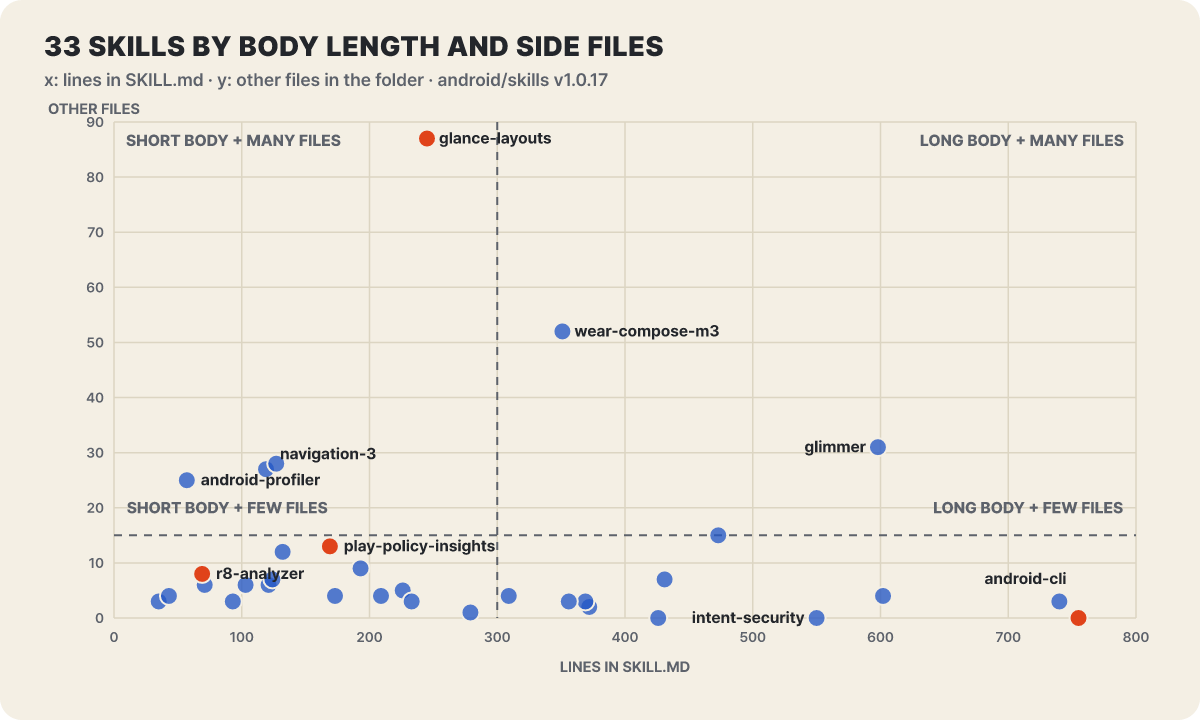 Figure 2. Body length and number of attached files for the 33 skills. The dotted thresholds are set by the editorial team (300 lines, 15 files). Red points are skills covered separately in the text
The points cluster at the bottom. There are 16 skills with a short body and few files and 11 with a long body and almost no files, which adds up to 27. Only 6 have more than 15 files, and among them glance-canonical-layouts has the most, with 87 other files next to a 245-line body. Each file holds a home-screen widget layout example. It is notable that the skill with the richest folder has a medium-length body.
At the upper left, navigation-3 (119 lines, 27 files) and android-profiler (57 lines, 25 files) use the body as a signboard. The body of navigation-3 is a table of contents that lines up the migration guide, the docs and 24 recipes with one-line descriptions, while android-profiler asks the user first if the request is vague, then sends recording requests to recording_orchestrator and analysis requests to analysis_orchestrator. Skills like these keep the amount read small, so they add little burden when many skills are installed.
At the lower right end is android-cli (755 lines), and to its left are leanback-to-compose-tv-migration (740 lines), android-permissions-security (602 lines), display-glasses-with-jetpack-compose-glimmer (598 lines) and android-intent-security (550 lines). The Agent Skills standard document recommends keeping SKILL.md under 500 lines, and exactly 5 skills cross that line. The body length recommended by the Android documentation is also 10,000 to 20,000 characters, yet the SKILL.md of android-cli, the longest, is over 37,000 bytes. Still, some skills, like edge-to-edge and android-intent-security, are mostly correct and incorrect code examples, so line count alone cannot separate good from bad.
Grouped by area, screen-related skills take a quarter
Grouping the folders by area also produces a map. The editorial team grouped the repository’s 18 folders into seven areas and counted them.
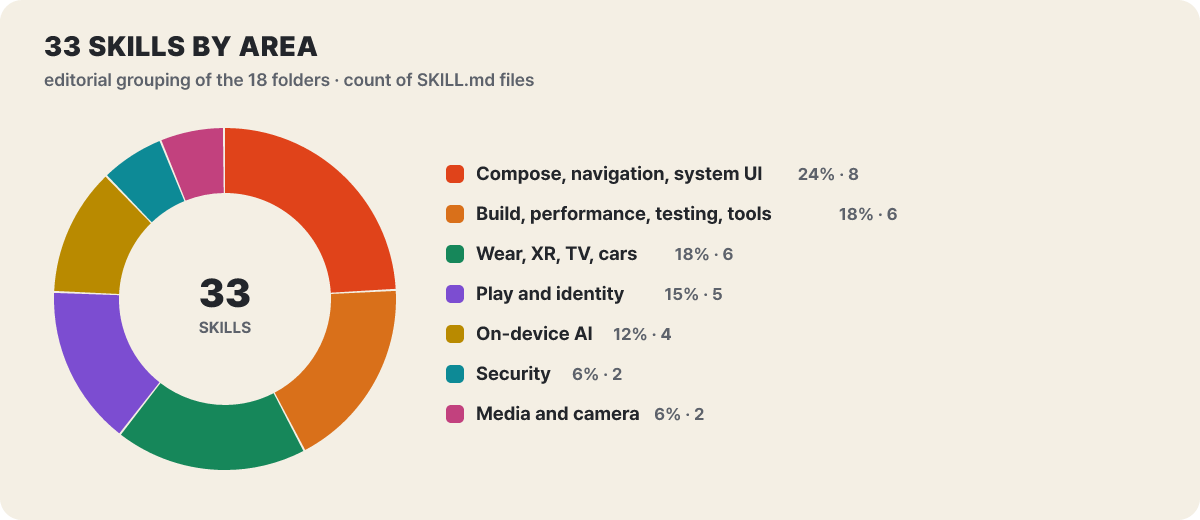 Figure 3. Number of skills by area (editorial grouping, out of 33). The largest slice is the 8 for the screen side (24%)
The largest slice is the screen side, with 8 (24%). It covers responsive UI, performance, XML migration and styles from the Compose folder, navigation-3 and navigation-event from the navigation folder, and edge-to-edge and the widget layouts from the system folder. Next come build, performance, testing and tools with 6 (AGP migration, R8, ANR, profiler, test setup, CLI), and the device-form side (Wear OS, XR glasses, TV, car) also has 6. On-device AI (appfunctions, litert-lm, litert-runtime, the ML Kit prompt API) has 4, and security has 2. The skills cluster in areas where the work has long steps and is sensitive to versions rather than being basic, and there is no skill for everyday tasks like “change a button’s color.” The selection criterion shows up on the map as is.
Three install routes and the folders where skills land
The shortest sequence for picking one and putting it into your project goes like this.
- Bring Android CLI up to date with
android update - Check the names with
android skills list - Give a skill name and a project path, as in
android skills add r8-analyzer --project=. - Ask the agent in your usual words. For example, "make my app UI edge-to-edge"
If you leave out --project in step 3, the skill is installed globally. You can name agents with a comma-separated list like --agent=claude, and if you do not, every detected agent is targeted. If no agent folder is detected and none is specified, it installs to the path for Gemini and Antigravity (~/.gemini/antigravity/skills). The README says that without --all only the android-cli skill is installed, so add --all to get everything. Running add again on an already installed skill overwrites it with the latest version, so to edit a skill you have to rename its folder first.
If you use Claude Code or Codex, there is also a route that takes the whole repository as a plugin.
/plugin marketplace add android/skills
/plugin install android-skills@android-skills
For Codex, it is codex plugin marketplace add android/skills and codex plugin add android-skills@android-skills. The third route is Android Studio. You download the skills from the repository, place them in .agents/skills or .android-studio/skills in the project root or your home folder, and you can also call one directly by typing @ in the Agent mode input box. The documentation (updated September 25) tells you to move the .skills and agent/skills that older Studio versions used to the new locations after Quail 1. Meanwhile, the Android skills documentation on using them directly lists .skills/ or .agent/skills/ in the project root, so the folder name differs from document to document. Follow the document that matches the version of the tool you use.
agp-9-upgrade: the skill that stops before starting
Among skills with an ordinary folder shape, some have an unusual character in their instructions. The first rule in the 103-line body of agp-9-upgrade is “check the project’s AGP version first, and stop if it is below 9.” The stopped agent asks the user to run Android Studio’s AGP Upgrade Assistant first and to tell it when that is done. Only if the user says to skip this step does the agent take on the job of raising AGP to the latest stable version. It is a design that blocks, in a single sentence, an agent jumping two steps at once.
When AGP is already 9 or higher, the main procedure has six steps. Check that KSP is 2.3.6 or higher and Hilt is 2.59.2 or higher, move to built-in Kotlin, move to the new DSL, replace kapt with KSP or legacy-kapt, handle custom BuildConfig fields as the dedicated document says if there are any, and then remove the four temporary flags in gradle.properties (android.builtInKotlin, android.newDsl, android.uniquePackageNames, android.enableAppCompileTimeRClass) and any temporary files the agent created. Verification is three things: a Studio sync, ./gradlew help, and ./gradlew build --dry-run.
What is worth reading in this skill is the four “do not” lines. Do not write or run Python scripts. Treat the dependency cache as a last resort, only for checking external libraries. Do not add android.disallowKotlinSourceSets=false. Do not run clean during verification (the stated reason is wasted time). It is a list that blocks in advance the detours agents often take when they lose their way. The skill excludes Kotlin Multiplatform projects itself, and a separate reference document notes that Paparazzi, the screenshot-testing tool, conflicts with AGP 9 at v2.0.0-alpha04 and below.
r8-analyzer: read the environment and choose among three routes
The hard part of editing the keep rules for R8 (the tool that shrinks and obfuscates code) is not knowing how much impact a given rule actually has. r8-analyzer reads the AGP and R8 versions from build.gradle, gradle.properties and libs.versions.toml, and picks the most quantitative route available on its own.
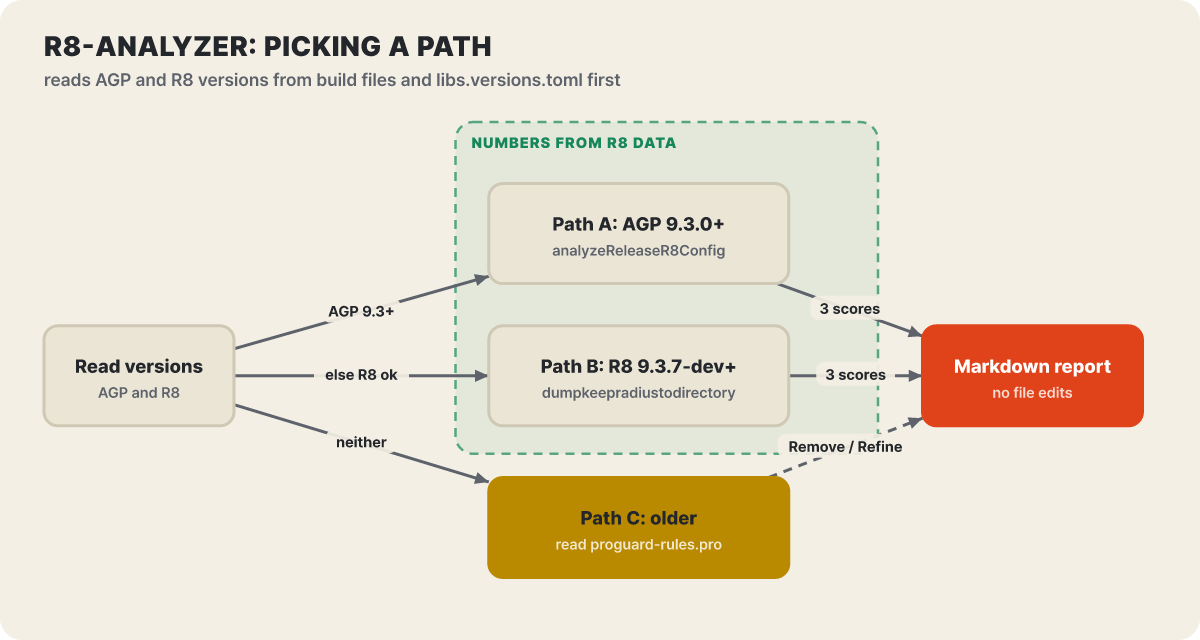 Figure 4. Route selection in the R8 analyzer. The top two routes build scores from R8 data, and the bottom route reads the rules file and makes suggestions
Route A applies when AGP is 9.3.0 or higher. It converts the .pb report produced by ./gradlew :app:analyzeReleaseR8Config into JSON and analyzes it. Route B applies when AGP is lower but R8 is 9.3.7-dev or higher, and it passes -Dcom.android.tools.r8.dumpkeepradiustodirectory=... to assembleRelease to extract the same data. Both write analysis_result.txt under tmp/, and it contains optimization, obfuscation and shrinking scores. In the analysis code in the reference document, a score is 100 minus “the share of items held by rules that impose the restriction,” and a global -dontoptimize rule sets the optimization score straight to 0, -dontobfuscate the obfuscation score, and -dontshrink the shrinking score. For versions too low for either route, route C reads proguard-rules.pro by eye and suggests Remove for rules the libraries already carry and Refine for broad rules that touch a whole package. Whole-package rules like -keep class com.example.**{ *; } are the first suspects, and a keep rule using the exclamation mark (!) operator holds everything in the app except that class, so the skill says to replace it with a narrower rule.
All three routes end the same way. It does not change the code and only posts a markdown report in a fixed format to the chat, and filler greetings are forbidden. After changing the rules, it recommends verifying with Macrobenchmark and UI Automator.
There is one place to watch in this skill’s folder. Route A tells you to run .agents/skills/r8-analyzer/scripts/convert_pb_to_json.py and .../scripts/analyze.py, but the r8-analyzer in the v1.0.17 repository tree has no scripts/ folder. The same conversion and analysis Python code is included as text in route B’s reference document, CONFIGURATION-ANALYZER.md. That is the yellow folder in the middle column of Figure 1. If route A fails to run after you install the skill, just know that the code in this document does the same job.
edge-to-edge: one method per element
When the app screen is drawn behind the status bar and navigation bar, buttons can be hidden by the bars or the keyboard can cover the input field. edge-to-edge targets Compose projects and says to raise targetSdk to 35 if it is lower. The procedure has three stages: plan, apply and handle insets. You find the places without support and the elements that get covered in every Activity to make a plan, call enableEdgeToEdge before setContent in onCreate, and for Activities that use the keyboard, put android:windowSoftInputMode="adjustResize" in the manifest.
The key is the rule to use only one method per element. Stacking methods on the same area creates double padding, where the margin is added twice. The order of preference is as follows.
- The content area uses the
PaddingValuesthat Scaffold hands down as they are - Trust the built-in handling of Material 3 components (app bars, navigation bars and rails, modal sheets)
- Outside Scaffold, use a padding modifier such as
safeDrawingPadding() - For deeply nested content, use
WindowInsetsRulersandfitInside - For decorative elements that must be as tall as the system bars, use an inset-size modifier
The keyboard has its own section. The preferred way is to apply fitInside(WindowInsetsRulers.Ime.current) to the content container, and the alternative is to put imePadding() before verticalScroll(). Using imePadding() again inside a parent that already handles keyboard insets, such as a Scaffold with contentWindowInsets set to safeDrawing, makes double padding, so the skill says to avoid it, and it lays out correct and incorrect examples side by side in code. There is also a note not to use the SOFT_INPUT_ADJUST_RESIZE constant and to use the manifest attribute instead. Adaptive Scaffolds (NavigationSuiteScaffold, ListDetailPaneScaffold) do not pass PaddingValues to their inner content, so insets must be handled separately per screen or component, and the skill warns that putting a modifier like safeDrawingPadding on the parent clips the screen and breaks edge-to-edge. It does not hide its limits either. Because it works by finding patterns and scanning the source, it can miss unusually wrapped components, and because verification stops at a successful build, gesture navigation, 3-button navigation and the state with the keyboard open have to be checked by a person on a device.
The five audit skills each audit in a different way
Besides the skills that fix things, five skills handle auditing and diagnosis, and though they are all “audits,” their methods differ.
The body holds 6 IF/ELSE-style decision logics (nested Intents, PendingIntent mutability, ContentProvider, service caller verification and others) and 7 code patterns, and ends with a report template that can be pasted into a PR. Network security is out of scope
An 11-row checklist that puts the pattern to find, the risk and the fix on one line. A check that trusts the caller name in an intent extra can be forged, so replace it with Binder.getCallingUid() and the signature, and do not use checkCallingOrSelfPermission() in a service
A 35-line body. After listing the candidates, it reports only those it has proven by showing "which thread it runs on" and "whether it really blocks," and lists rejected candidates separately with a one-line reason. Given a stack dump, it diagnoses from the evidence, and when an external bottleneck is the cause it does not suggest a fix
A two-stage structure: a script sets audit goals by static analysis, sub-agents investigate each goal, and a critique stage verifies. It checks three areas (data safety, sign-in credentials, restricted permissions) against the Play Store declarations
Handles recording and analyzing Perfetto traces, and instructs the agent to ask first rather than guess when the user's intent is unclear. It splits requests into a recording-side and an analysis-side procedure document, and also keeps a PerfettoSQL query document
It is striking that the way of auditing is also the way of earning trust. The ANR skill demands proof to stop the agent’s guesswork, the permissions skill gathers patterns with a checklist, and the Play policy skill does not trust one agent’s judgment and has another agent review it again. Either way, it presupposes the README’s disclaimer that a person must look at the results again.
android-cli: what a 755-line manual teaches an agent
The longest skill is not a feature skill but a tool manual. The android-cli skill teaches how to use the android command for SDK installation, project creation, emulators, documentation search and skill management, and spends nearly a third of its body on handling the device screen and Journey tests. The sequence is that the agent first reads the screen structure as JSON with android layout, takes a screenshot with a number on each element using android screen capture --annotate if that is not enough, converts a number into coordinates with android screen resolve, and taps with adb shell input. The numbered rules say to check that the input field’s state includes FOCUSED before typing, to scroll slowly, and, if the screen does not change after an action, to wait a few seconds and read layout again.
This skill also has a section we have not seen elsewhere: how to evaluate “Journey” tests that describe app behavior in XML. When sentences such as “tap the Home icon” and “check that it is the home screen” are written in order inside <action>, the agent carries out each sentence independently and exactly as written. If even one fails, or the app terminates, crashes or hangs, the Journey fails, and the Journey XML is treated as the correct answer, so an app that differs from the Journey is counted as wrong. An <action> that packs several actions into one sentence, like “search for soda and add the first result to the cart,” should be split and evaluated separately.
The CLI itself has also grown a lot since April. The release notes list 0.7 in April as the first release, the skill library arrived in 1.0.x in May, and 1.1.16717390 in October is said to have added crash signals from the field (android signals), app profiling (android profiler), artifact analysis (android analyze), Compose previews (android preview) and a device screen mirroring window (android device hub). Among the known issues the documentation lists, android emulator is turned off on Windows and downloading the CLI with PowerShell is not supported. Usage data collects subcommand and option names and anonymized error information, and it does not collect user input such as response content, project names or paths; to turn it off, pass --no-metrics. Options you use often can be written one per line in .androidrc in your home folder.
In October alone, 22 skills were revised
When the Android Developers blog released the CLI, skills and a knowledge base together on April 16, the first skills were about Navigation 3, edge-to-edge, AGP 9, XML-to-Compose migration and R8. The blog said that when setting up a project and environment with the CLI, completion was 3 times faster and LLM tokens fell by more than 70% compared with an agent using only standard tools, but this is Google’s internal experimental figure for setup tasks. It is safer to read it as a direction, that time spent flailing in the setup stage can shrink, than to expect the same margin in your own project.
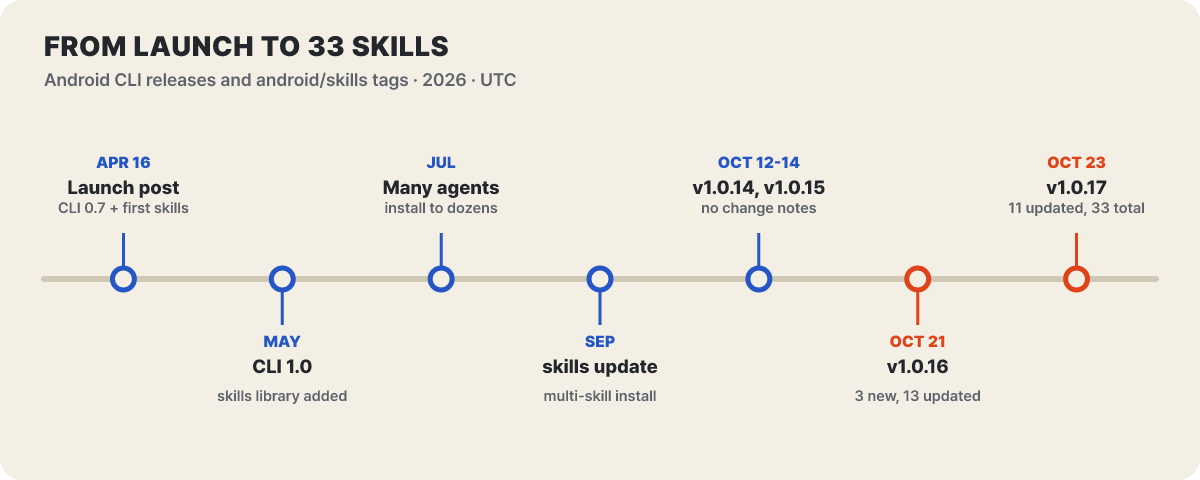 Figure 5. Progress from the announcement to 33 skills (based on CLI release notes and repository tags, 2026)
The pace picked up over six months. Counting the last-updated in the headers of the 33 skills gives 1 in July, 2 in August, 8 in September and 22 in October. The v1.0.16 release on October 21 brought 3 new skills and 13 updates, and v1.0.17 on the 23rd brought 11 updates. The v1.0.14 and v1.0.15 releases have no change list.
The three new skills that arrived on October 21 are quite unlike one another. litert-lm is a skill for building apps that run Hugging Face .litertlm models (Gemma, Qwen, Llama, Phi) on the phone itself, on the CPU or GPU. It includes guidance such as minSdk 24 for the litertlm-android 0.18.0 AAR, initializing the engine off the main thread, and keeping the model file in device storage rather than in assets/ or the APK, and it leaves image and audio input, tool calls and NPU out of scope. anr-audit-and-fix is the proof-based audit we saw earlier, and projected-hardware is a 43-line skill that covers the camera and microphone, glasses-specific runtime permissions and the connection lifecycle on Android XR audio glasses and display glasses. The breadth of Android, with its ever-growing device forms, is reflected directly in the skill list.
To write your team’s skills in the same shape
The documentation also explains how to write your own. Each skill gets a folder with a SKILL.md that keeps the exact capitalization. The smallest shape looks like this.
---
name: team-room-migration
description: Use when changing a Room schema in a team project and a migration test must be created as well.
metadata:
  author: my-team
  version: "1.0"
---

1. Check that the pre-change schema JSON exists.
2. Add the migration class and write the test.
3. When finished, confirm that ./gradlew test passes.
name is lowercase letters, digits and hyphens, up to 64 characters, and must match the folder name, and description is up to 1,024 characters. When an agent invokes a skill depends on this description, so it needs to say both “what it does” and “when to use it.” The body is recommended to stay within 10,000 to 20,000 characters, and when it grows, split it into references/ (detailed documents), scripts/ (executable code) and assets/ (templates and schemas). Against the map above, you can get a sense of which shape to choose. If the instructions are short and the steps clear, put even the “do not” list on one body page like agp-9-upgrade; if there are many documents to refer to, use the body as a table of contents like navigation-3; and if the order and verification are mechanical, hand them to a script like play-policy-insights.
A few constraints are worth knowing too. Only skills installed inside the project are supported, and since the agent picks skills on its own from the descriptions, invocation is not guaranteed. If a skill is not invoked automatically, try putting the skill name directly in your request. Many skills also draw their own boundaries: AGP migration says not to use it on Kotlin Multiplatform, edge-to-edge not on View-based screens, and litert-lm not for image or audio input. The repository does not accept public contributions, and takes feedback and new skill requests as issues.
Other ways to hand off the same work, besides skills
If skills put a procedure in the agent’s hands, there is also a route that has the agent fetch the documentation itself up to date (Context7), and there are articles that take apart how a single folder is read. Start with the news of Agent Skills being handed to a foundation and the structure in which SKILL.md is read in three stages to see where this article’s folder figure fits in the standard. If you are curious about security audit skills, Cloudflare’s security audit skill that has another agent rebut the vulnerabilities an agent found uses the same idea of “another agent reviews it again” in a different way. The approach of solving the problem of models using outdated APIs with documentation search is covered in how to install Context7 and its limits, and the official usage and the full list of commands are in the Android CLI documentation (android -h, android skills add -h).